Admins and operators
Useful when small content, text, color, or contrast tasks appear during real work and the user needs a quick answer immediately.

Text & Dev Tools is the compact utility workspace of Noesia Smart Waiter. It is built for the moments where operators, designers, and developers need immediate helper tools without leaving the platform: text cleanup, contrast and color checks, markdown and formatting assistance, quick conversion or helper panels, and small developer-side micro tools that make daily testing and content handling faster.
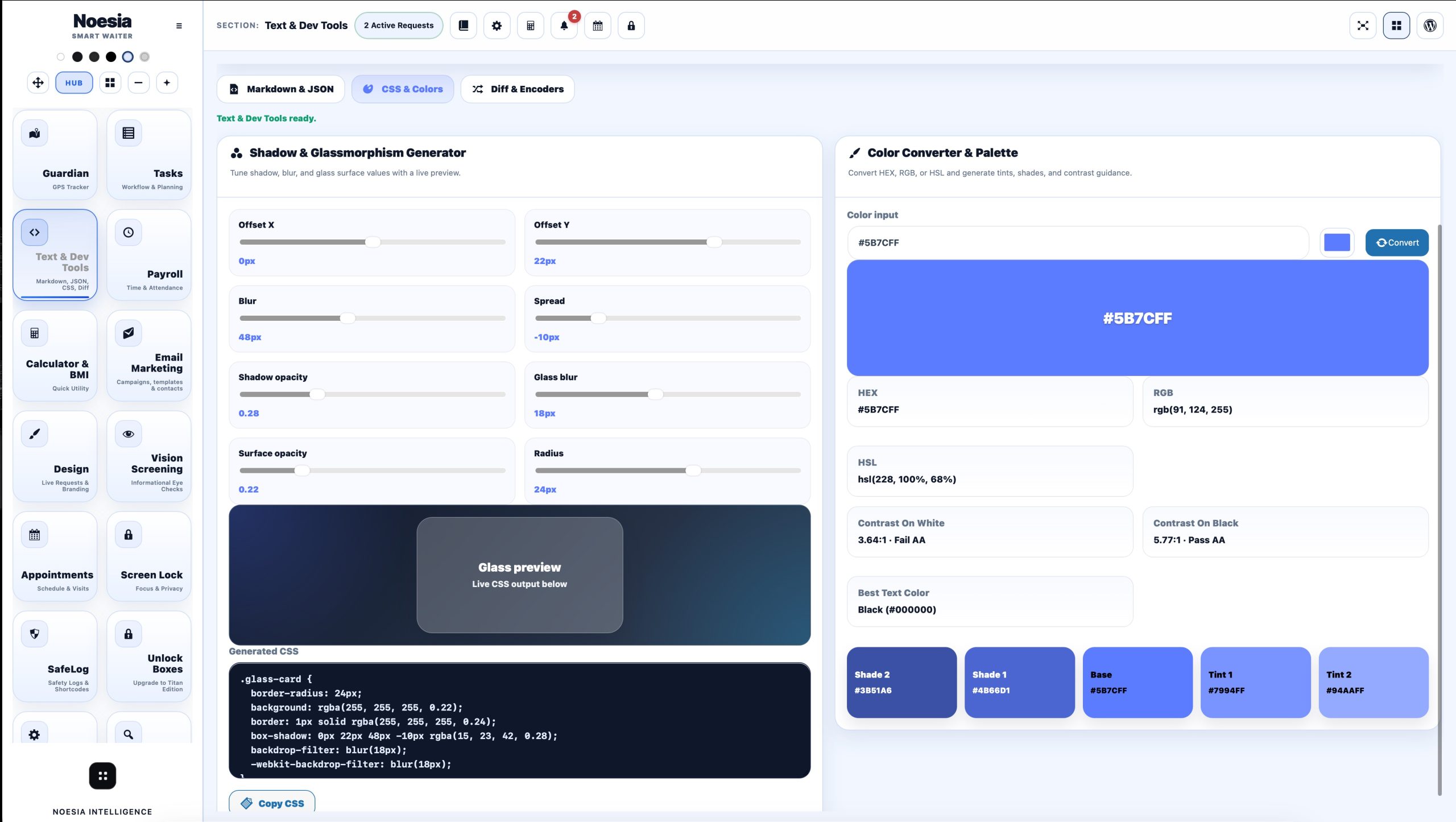
Useful when small content, text, color, or contrast tasks appear during real work and the user needs a quick answer immediately.
Useful for refining wording, checking presentation quality, validating readability, and preparing clean snippets before they go live.
Useful when the installation needs small debug, helper, formatting, or micro-conversion tools without leaving the Matrix shell.
Admin path: open the Noesia Smart Waiter admin area and select Text & Dev Tools from the plugin shell navigation.
Tier: this module is part of the Free tier.
Role expectation: intended for administrators, power users, designers, content editors, and developers who need quick helper tools inside the platform.
Treat the module as a fast utility workspace for the tasks that appear often: text cleanup, markdown help, color checks, or quick micro-debugging.
The module is strongest when it removes friction from tiny repetitive jobs instead of pretending to be a full external suite.
It becomes especially valuable when used alongside documentation, design tuning, shell styling, and small technical adjustments.
The ideal use is fast entry, fast utility action, fast exit back into real work.
Use it when text, markdown, contrast, color, or helper-tool work shows up during real operation.
Go directly to the helper panel that solves the task instead of leaving the platform and opening multiple external services.
Clean the text, inspect the contrast, compare colors, or run the quick helper check you need.
The whole point is to reduce interruption and return you back to real work faster.
The module becomes more valuable over time because tiny repetitive utility tasks no longer require context switching.
This matters because many real content tasks are small and repetitive, and a fast built-in text helper saves time immediately.
This matters when the user needs clean structured text output without leaving the shell for another tool.
This matters because design decisions often need quick validation, especially in embedded admin or documentation work.
This matters because small checks often do not justify a full external developer workflow, but still need a quick answer.
The module is useful because many small helper surfaces live together instead of being scattered across unrelated tools.
The whole screen should feel like a rapid helper workspace, not like a heavy application with unnecessary ceremony.
Use the module to prepare cleaner text, check presentation quality, and make small refinements before content goes into live pages or documentation.
Use the contrast and color helpers to validate text readability and make faster visual decisions during interface work.
Use markdown and formatting helpers when the business needs a clean block of reusable text, notes, or embedded content.
Use the micro utility tools for small debugging or helper tasks when opening a full external workflow would be overkill.
Issue: the user expects one giant app but sees many small helper tasks living together.
Why it happens: Text & Dev Tools is intentionally a compact multi-tool space, not one single-purpose module.
What to do: use it as a fast utility drawer for small tasks and judge it by how much time it saves during real work.
Issue: the module exists, but users still leave the platform for tiny helper tasks.
Why it happens: they may not yet realize how many small daily utilities already live here.
What to do: encourage the team to use it first for text cleanup, contrast, color, and formatting tasks before opening external tools.
Issue: the user expects full external-editor depth from a small built-in helper tool.
Why it happens: the module is designed for fast micro tasks, not for replacing every dedicated professional application.
What to do: use it where speed matters most and leave truly large specialist workflows to the appropriate dedicated tools.
Issue: a color or contrast decision still feels uncertain after using the module.
Why it happens: the visual decision may need to be tested again in the real target page or final UI context.
What to do: use Text & Dev Tools as the fast first-pass check, then validate the final result in the real page where it will actually live.
Yes. It belongs to the free tier and acts as the compact utility workspace of the platform.
No. It is useful for admins, content editors, designers, operators, and developers.
Small text cleanup, markdown help, formatting, contrast checks, color checks, and quick helper-tool tasks.
No. Its role is speed and convenience for micro tasks inside the platform.
Because readability decisions often happen in real design and documentation work, and fast feedback saves time.
Because many tiny writing and formatting tasks appear during real admin work and do not justify leaving the shell.
Yes. It is especially valuable for frequent small content tasks.
Yes. That is one of the intended roles of the module.
Because its value comes from solving many small repetitive tasks quickly.
No. Use it when the task is small enough that speed matters more than deep external tooling.
Yes. It strengthens the ecosystem by reducing needless context switching.
Less friction, fewer browser tabs, and faster tiny task completion during real work.
The Noesia Matrix is the shared architecture language and module fabric behind Noesia Smart Waiter. This module is not just a static page; it sits inside an isolate-first modular system designed for shell-driven navigation, clean section ownership, extensible widget zones, and future-safe expansion.
The architecture direction is intentionally high-control: modular ownership, isolated assets, lazy-ready behavior, clean settings flow, predictable prefixes, maintainable service boundaries, and enterprise-safe discipline around structure, security, and extensibility. Noesia transcends the definition of a standard WordPress plugin, operating as a robust platform built upon enterprise-grade Service-Oriented Design.
Here is how the core engine is designed to minimize bloat, maximize stability, and keep the experience consistently fast and responsive:
Event-Driven Inversion of Control (IoC): The platform follows an IoC pattern via a decoupled Event Bus. The central core acts as a “Logic-Less Host” (Blind / DUMMY Kernel). It does not tightly bind itself to module internals; modules announce their own presence, capabilities, and state through controlled registration flows.
The Micro-Frontend Paradigm (MFE): The UI is not a giant monolithic block. Each application behaves as an independent Micro-Frontend with its own dynamic assets, specialized logic, and UI contracts.
Strict Asset Isolation & Lazy-Loading: Resource usage stays disciplined. A module’s CSS, JavaScript, and data components are loaded only when the user reaches or interacts with that specific application surface.
Decoupled Registry Pattern: The dynamic discovery layer allows applications to be added or removed quickly without rewriting core logic. If one application encounters an issue, the architecture is designed to contain that impact instead of cascading it across the platform.
Enterprise-Grade Security & Stability: The platform is reinforced with strict input sanitization, dynamic registry routing, and defensive safety gates across the stack. The data layer and the user interface remain deliberately separated for maintainability and risk control.
The Result: A scalable hospitality and clinical operating system engineered to manage mission-critical workflows securely — from intimate cafés to high-traffic venues and sensitive medical environments.
When you open a ticket, include one clean screenshot, the exact visible error text, short reproduction steps, and the exact helper surface you were using. That reduces back-and-forth and speeds up resolution.
Open SupportEnter the application layer: Explore the full Noesia Smart Waiter ecosystem and discover how each isolated module helps serve hospitality, operations, business workflows, and the wider mission to reimagine life through smarter software.
Scroll into the Matrix: The catalog below is the live gateway to the platform. Move through Free and Pro environments, open each documentation page, and step directly into the next application surface.