Content and marketing teams
Useful when you need to prepare website, campaign, menu, or documentation images quickly without bouncing between many external tools.

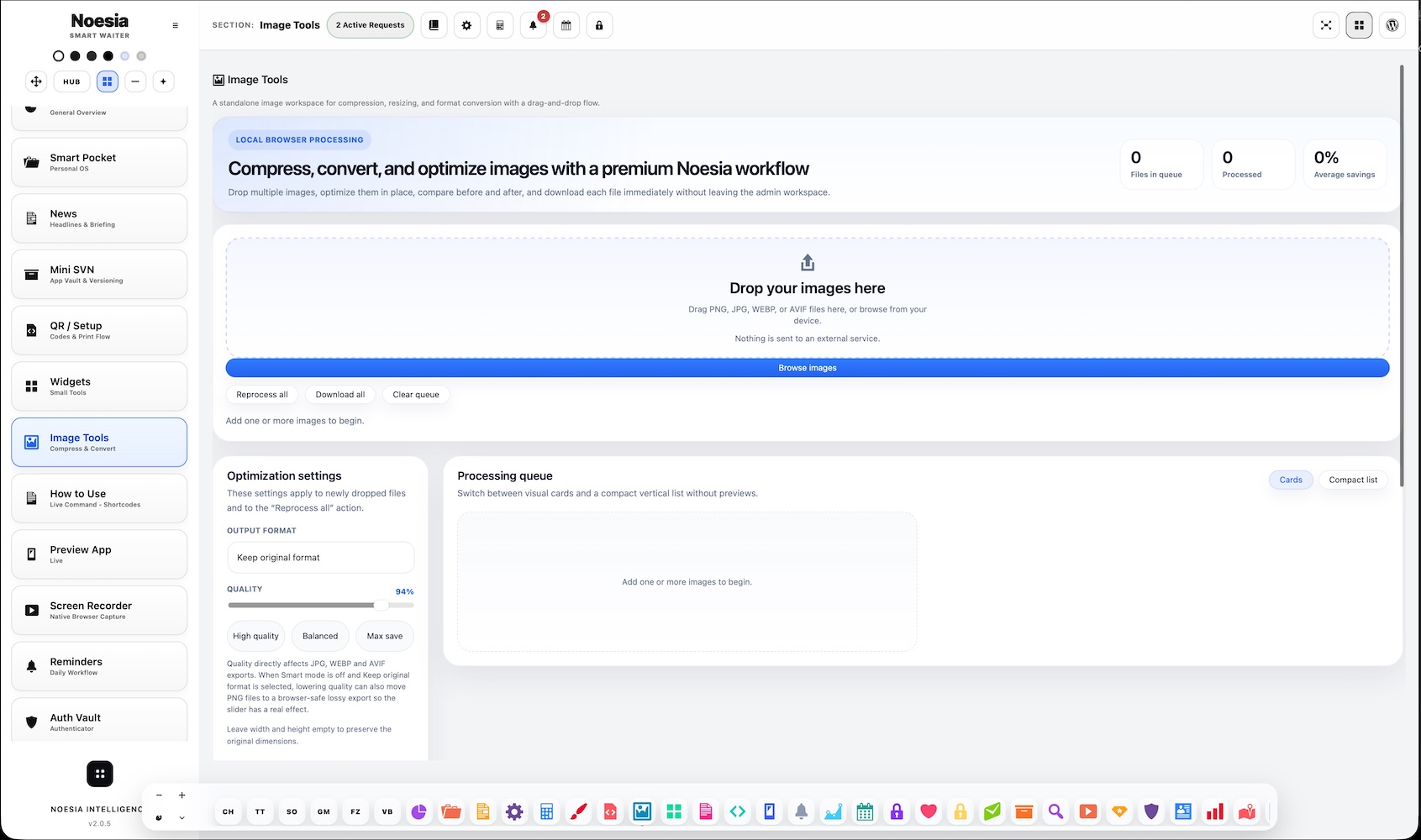
Image Tools is the self-hosted image optimization workspace of Noesia Smart Waiter. It is built for drag-and-drop intake, before / after comparison, compression tuning, resize and conversion actions, queue-style multi-file handling, and clean mass download output so operators can process media quickly without leaving the platform.
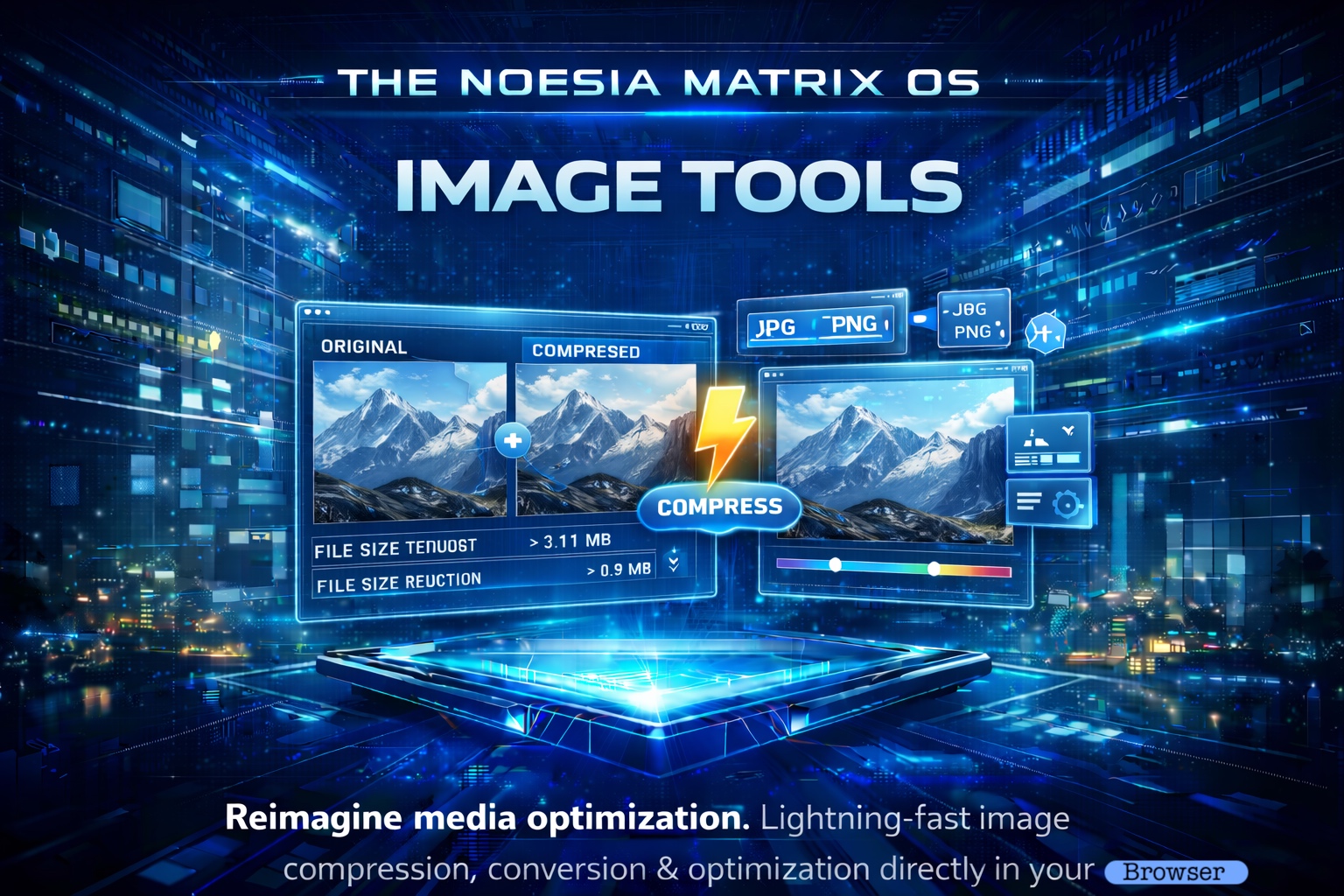
Image Tools now goes beyond optimization. Alongside the original compression and compare workflow, the module now includes Image Design for fast visual editing and Universal Local Converter for broad in-browser conversion routes across image, document, spreadsheet, and PDF formats. The result is a sharper daily utility surface: optimize, annotate, convert, and export without pushing assets to third-party servers.
Useful when you need to prepare website, campaign, menu, or documentation images quickly without bouncing between many external tools.
Useful for compressing screenshots, resizing assets, converting formats, and exporting multiple optimized files inside one local workspace.
Useful when the team needs drag-and-drop intake, queue-style processing, compare views, and batch download instead of one-image-at-a-time friction.
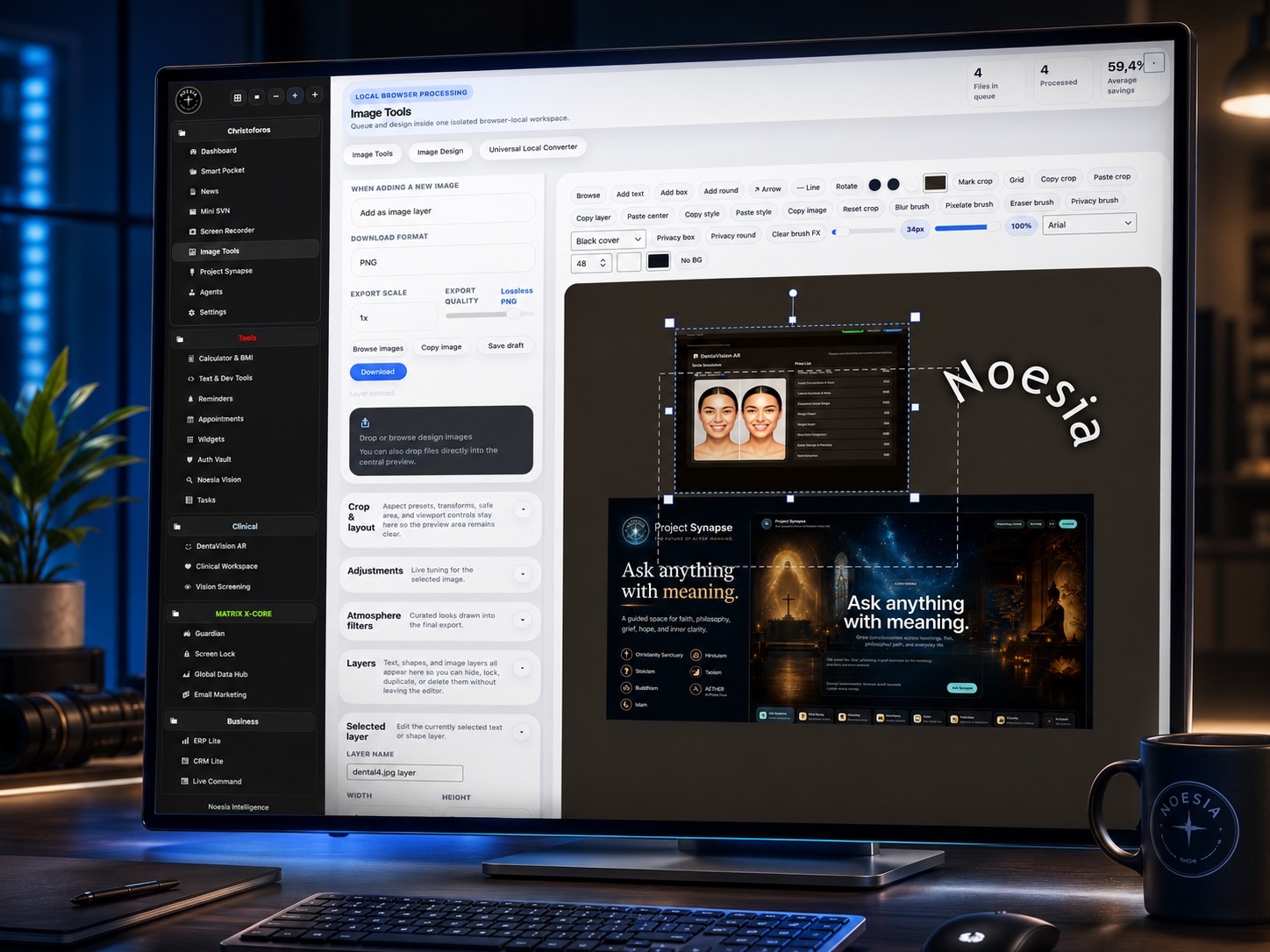
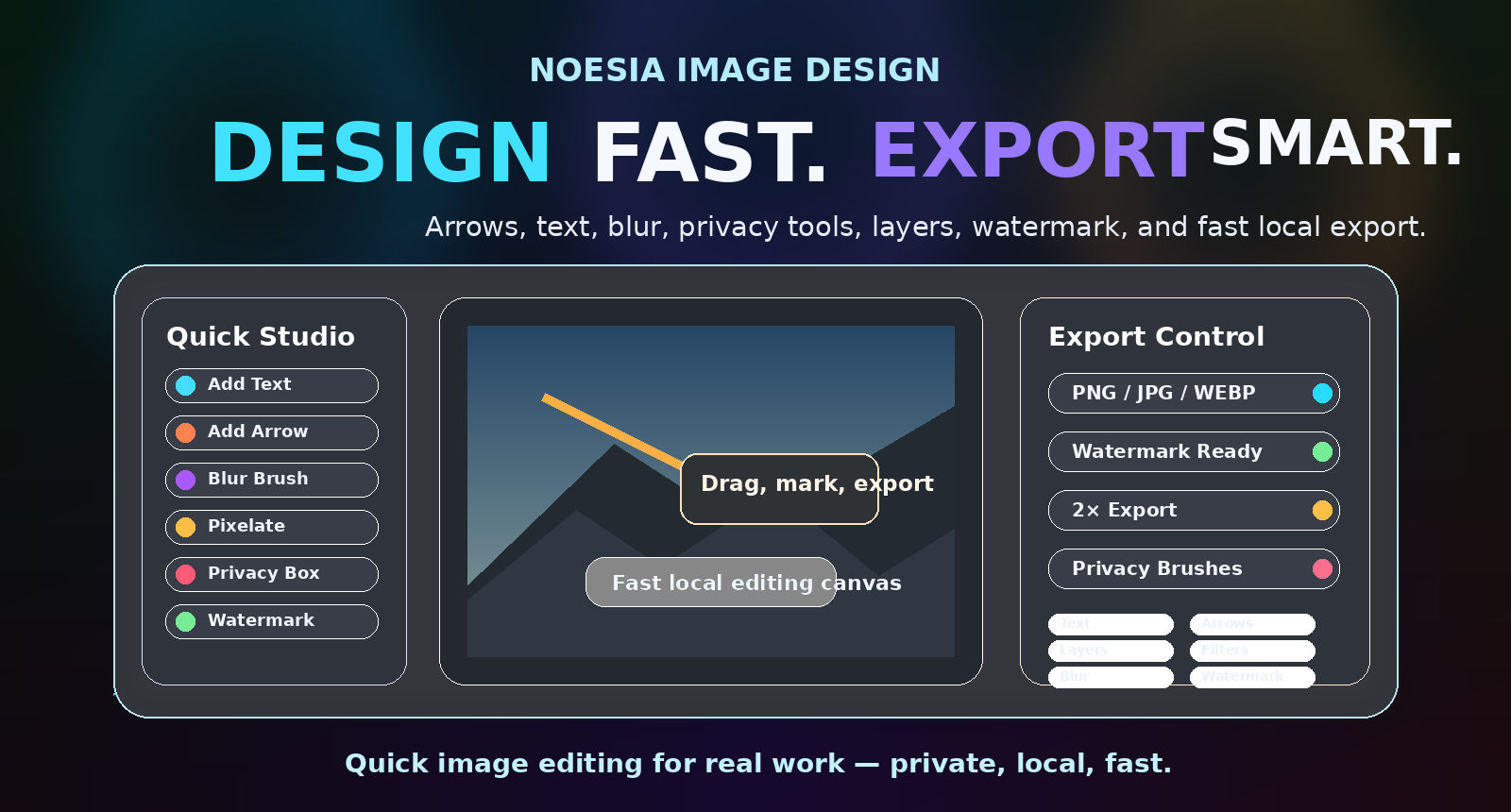
The new Image Design canvas is built for the edits operators actually need under time pressure: add text, arrows, highlight boxes, circles, blur, pixelate, privacy masks, quick crop actions, layer-based editing, watermark control, and one-shot export from the same workspace.
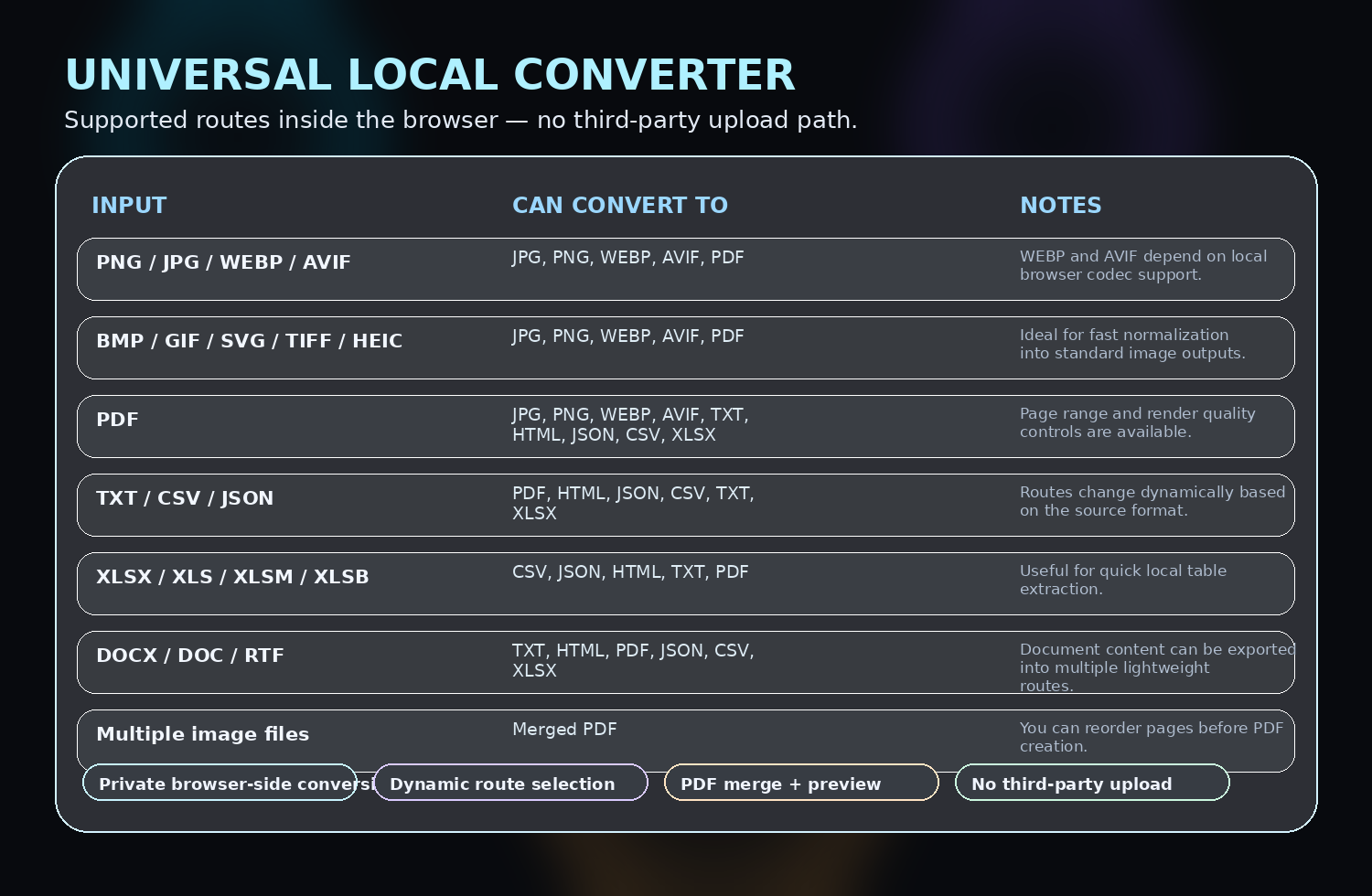
Universal Local Converter expands the module from image-only work into a wider browser-local conversion surface. It can route images, SVG, TIFF, GIF, HEIC, PDF pages, TXT, CSV, JSON, XLSX-family files, DOCX, DOC, and RTF through dynamic output paths depending on the selected source type.
This is especially useful when screenshots, menus, product visuals, support captures, or internal business files must stay private. Operators get practical speed and format flexibility without automatically sending assets to outside services or depending on remote processing steps.
Admin path: open the Noesia Smart Waiter admin area and select Image Tools from the plugin shell navigation.
Tier: this module is part of the Free tier.
Role expectation: intended for administrators, content teams, managers, and operators who need fast image preparation inside the app.
Know whether you need smaller web images, format conversion, resized documentation assets, or a batch export before starting the queue.
Prepare to verify the result with before / after compare so optimization does not reduce quality more than the workflow can tolerate.
When you have many images, build the queue first and then process with one parameter pattern instead of handling every file in a disconnected way.
Use the mass download flow after you confirm the output looks right in compare view and the compression result matches the target use case.
Use drag and drop or browse selection to create the processing queue quickly.
Adjust the optimization target, conversion direction, and size-related controls based on what the images are for.
Use the before / after interface to verify how the optimized version looks next to the original.
Run the selected actions across the imported items so the module generates the final optimized outputs.
Download the processed files in one clean step once the queue looks correct and the compare check is complete.
This is where the operator drags files in, starts the queue, and builds the processing batch.
The parameter area controls how aggressively images are optimized and what kind of final export should be produced.
The compare surface helps the operator inspect before / after quality instead of downloading blindly.
The module supports alternate views for reading the result and understanding how the output differs from the original.
The queue or multi-file handling area helps the operator understand which items are ready, processed, or still waiting.
The final output area makes it easy to export the optimized results together once the full batch is ready.
The output list changes dynamically based on the source file type. JPG and PNG remain the baseline raster routes, while WEBP and AVIF depend on actual browser-side codec support. PDF merge order, page range, render quality, and image export quality controls make the panel practical for real operations instead of checkbox marketing.
When the task is no longer only compression, move into Image Design and use quick actions for arrows, text, blur, privacy areas, crop control, atmosphere filters, and watermark finishing.
Use Universal Local Converter when the source is not a normal web image only. PDF pages, spreadsheets, JSON, CSV, DOCX, DOC, and RTF can all take a different local export route depending on the selected file type.
Pick the final route based on where the output is actually going: website image, PDF handoff, lightweight text extraction, spreadsheet handoff, or private annotated screenshot delivery.
The design stage is the fast-edit center of the new workflow. The image strip and layer list make it easier to move between loaded images, select active objects, and control text, shape, and image layers without leaving the editor.
The practical value is speed: rotate, flip, crop reset, blur brush, pixelate brush, privacy tools, text size, text color, text background, watermark controls, and atmosphere filters all sit close to the working surface instead of being buried in a slow editor flow.
The converter surface is organized around route selection, page range, PDF render quality, image export quality, longest-edge control, merge order, and live preview. It is practical because the UI explains what the chosen route will produce before the operator exports it.
Drop a group of screenshots into the queue, reduce size, inspect the before / after compare, and mass download the cleaned outputs for docs or support pages.
Use the parameter controls to shrink large originals, change format where needed, and export a cleaner set for web publishing.
Import many images at once, keep one output pattern across the queue, then export the entire batch with one mass download flow.
Use the compare interface to decide whether the compression settings are acceptable before sharing or publishing the final outputs.
Open Image Design, add arrows, quick text, privacy blur or pixelation, and a watermark, then export the corrected screenshot immediately. This is especially useful for support replies, internal notes, and instruction visuals where speed matters more than a heavyweight external editor.
Use Universal Local Converter to extract a more practical output from a source file: PDF pages into images, DOCX into TXT or HTML, XLSX into CSV, or JSON into lightweight handoff formats. The route list adapts to the source instead of making the operator guess unsupported paths.
Drop multiple images or compatible sources, reorder the sequence, then export a merged PDF locally. This is useful for simple reports, evidence packs, process captures, menus, or grouped asset handoffs without leaving the Noesia workspace.
Issue: the optimized image is much smaller but the result quality is weaker than expected.
Why it happens: the compression or output settings are too aggressive for the image type and intended use.
What to do: reduce the compression pressure, rerun the queue, and recheck the before / after comparison before downloading again.
Issue: the operator drops images but nothing useful appears in the queue.
Why it happens: the browser session may be stale, the drop target may not have focus, or the files were not accepted into the current queue state.
What to do: retry the drag action carefully or use direct file selection once to confirm the intake flow is active.
Issue: the user expects one-click export but the batch is not ready.
Why it happens: some files may still be unprocessed or the compare / conversion sequence was not completed yet.
What to do: finish the queue processing first, confirm the outputs exist, then use the mass download action when the whole batch is ready.
Issue: the final file type or dimensions do not match the target use case.
Why it happens: the output parameters were not aligned with the intended resize or conversion goal before running the queue.
What to do: recheck the conversion and size parameters, then rerun the files with the correct output target selected.
Issue: after sustained local editing, exports, or repeated large-image manipulation, the browser tab may feel heavier than it did at the beginning of the session.
Why it happens: browser-local graphics work can accumulate memory pressure, especially on older WordPress environments, older hardware, or devices with weaker graphics and limited RAM.
What to do: save or export your work, close the Image Tools tab, and reopen it for a fresh local session. This is not a sign of a cheap workflow — it is a practical reset path when a browser-based editor has already done intense work on limited hardware.
Issue: the converter or export panel does not always expose every modern raster route on every browser.
Why it happens: WEBP and AVIF output depend on real local browser codec support, not marketing assumptions. Some browsers can preview a format but still not support the full export path used by the local canvas workflow.
What to do: use JPG or PNG as the reliable fallback, or test again in a newer browser version if that format is operationally important.
Issue: a large PDF, many pages, or very detailed render settings can slow the conversion flow.
Why it happens: higher render quality and large page sets consume more browser memory during local conversion.
What to do: reduce the page range, choose a more balanced PDF render quality, or process the file in smaller parts when the source is unusually large.
Yes. It belongs to the free tier and acts as the self-hosted image optimization workspace of the platform.
Yes. Drag-and-drop intake is one of the core ways to add images into the queue.
Yes. The module is designed to support a before / after compare view so quality can be checked before export.
Yes. The interface supports alternate ways to inspect and compare the optimized result against the original.
Yes. The queue-style workflow is built for multi-file handling rather than only one-image-at-a-time work.
Yes. Once the batch is ready, the outputs can be downloaded together through the mass download flow.
Yes. The parameter area is intended to support output changes beyond compression alone.
No. It is also useful for documentation, support material, campaigns, screenshots, and general media preparation.
Because it helps catch over-compression or wrong output choices before exporting the whole batch.
For many quick workflows, yes. That is one of the main reasons it exists inside the suite.
Yes. Utility modules are part of the same shell because they speed up daily work without forcing context switching.
Not always. The right compression and output target depends on whether the final use is web, docs, sharing, or higher-quality delivery.
No. One of the strongest practical advantages of these new tabs is privacy. Image Design and Universal Local Converter are meant to keep the work inside the browser-local workflow instead of forcing a third-party upload path for normal processing.
Not for every advanced production task. Its strength is fast, smart editing when the operator needs arrows, text, blur, privacy masks, crop actions, layers, filters, and watermark output immediately inside the same business workspace.
It is practical because it is not limited to one image route. It can react to PDFs, spreadsheets, JSON, CSV, DOCX, legacy DOC, and RTF sources, then expose only the routes that make sense for the current input instead of showing a fake universal export list.
The Noesia Matrix is the shared architecture language and module fabric behind Noesia Smart Waiter. This module is not just a static page; it sits inside an isolate-first modular system designed for shell-driven navigation, clean section ownership, extensible widget zones, and future-safe expansion.
The architecture direction is intentionally high-control: modular ownership, isolated assets, lazy-ready behavior, clean settings flow, predictable prefixes, maintainable service boundaries, and enterprise-safe discipline around structure, security, and extensibility. Noesia transcends the definition of a standard WordPress plugin, operating as a robust platform built upon enterprise-grade Service-Oriented Design.
Here is how the core engine is designed to minimize bloat, maximize stability, and keep the experience consistently fast and responsive:
Event-Driven Inversion of Control (IoC): The platform follows an IoC pattern via a decoupled Event Bus. The central core acts as a “Logic-Less Host” (Blind / DUMMY Kernel). It does not tightly bind itself to module internals; modules announce their own presence, capabilities, and state through controlled registration flows.
The Micro-Frontend Paradigm (MFE): The UI is not a giant monolithic block. Each application behaves as an independent Micro-Frontend with its own dynamic assets, specialized logic, and UI contracts.
Strict Asset Isolation & Lazy-Loading: Resource usage stays disciplined. A module’s CSS, JavaScript, and data components are loaded only when the user reaches or interacts with that specific application surface.
Decoupled Registry Pattern: The dynamic discovery layer allows applications to be added or removed quickly without rewriting core logic. If one application encounters an issue, the architecture is designed to contain that impact instead of cascading it across the platform.
Enterprise-Grade Security & Stability: The platform is reinforced with strict input sanitization, dynamic registry routing, and defensive safety gates across the stack. The data layer and the user interface remain deliberately separated for maintainability and risk control.
The Result: A scalable hospitality and clinical operating system engineered to manage mission-critical workflows securely — from intimate cafés to high-traffic venues and sensitive medical environments.
When you open a ticket, include one clean screenshot, the exact visible error text, short reproduction steps, and whether the problem is constant or intermittent. That reduces back-and-forth and speeds up resolution.
Open SupportEnter the application layer: Explore the full Noesia Smart Waiter ecosystem and discover how each isolated module helps serve hospitality, operations, business workflows, and the wider mission to reimagine life through smarter software.
Scroll into the Matrix: The catalog below is the live gateway to the platform. Move through Free and Pro environments, open each documentation page, and step directly into the next application surface.