New operators
Useful for people who just installed Noesia Smart Waiter and need a clear first path before jumping into multiple modules.

How to Use is the built-in guidance and onboarding surface of Noesia Smart Waiter. It is designed to help operators understand the platform structure, discover the first steps, reduce confusion after installation, and move into real usage faster without needing external walkthroughs for every basic action.
Useful for people who just installed Noesia Smart Waiter and need a clear first path before jumping into multiple modules.
Useful when a manager wants to explain where things live, what each area does, and how the team should begin using the platform.
Useful as a built-in reference layer that answers the most common beginner questions before they turn into repetitive support requests.
Admin path: open the Noesia Smart Waiter admin area and select How to Use from the plugin shell navigation.
Tier: this module is part of the Free tier.
Role expectation: intended for administrators, managers, and onboarding-focused operators who want guided product entry.
Make sure the plugin shell, Dashboard, and Settings are available so the guidance references a real working environment.
Business identity and major configuration areas should already exist so the onboarding flow points to meaningful destinations.
Think about what your users should open first, what they should learn next, and which modules matter most in the first session.
Position the module as the first-stop explanation surface before deeper module-specific training begins.
Start here when the user needs orientation before touching multiple modules or settings areas.
Use the guidance to see how Dashboard, Settings, and the rest of the modules fit into one operational flow.
Move from overview into profile setup, shell navigation understanding, and the first practical module touchpoints.
Managers can use the same page as a shared onboarding layer for staff or new admin users.
Once the operator understands the basics, move into the specific module pages for detailed workflows and troubleshooting.
The top area explains the purpose of the module and gives immediate context about who it is for and why it matters.
The module uses familiar section blocks to teach the user progressively rather than overwhelming them with everything at once.
This area shows the practical first path a new user should follow when learning the product.
Troubleshooting and FAQ work together to answer the first questions before support becomes necessary.
The bottom Matrix ecosystem area helps the user move from abstract guidance into the actual application catalog.
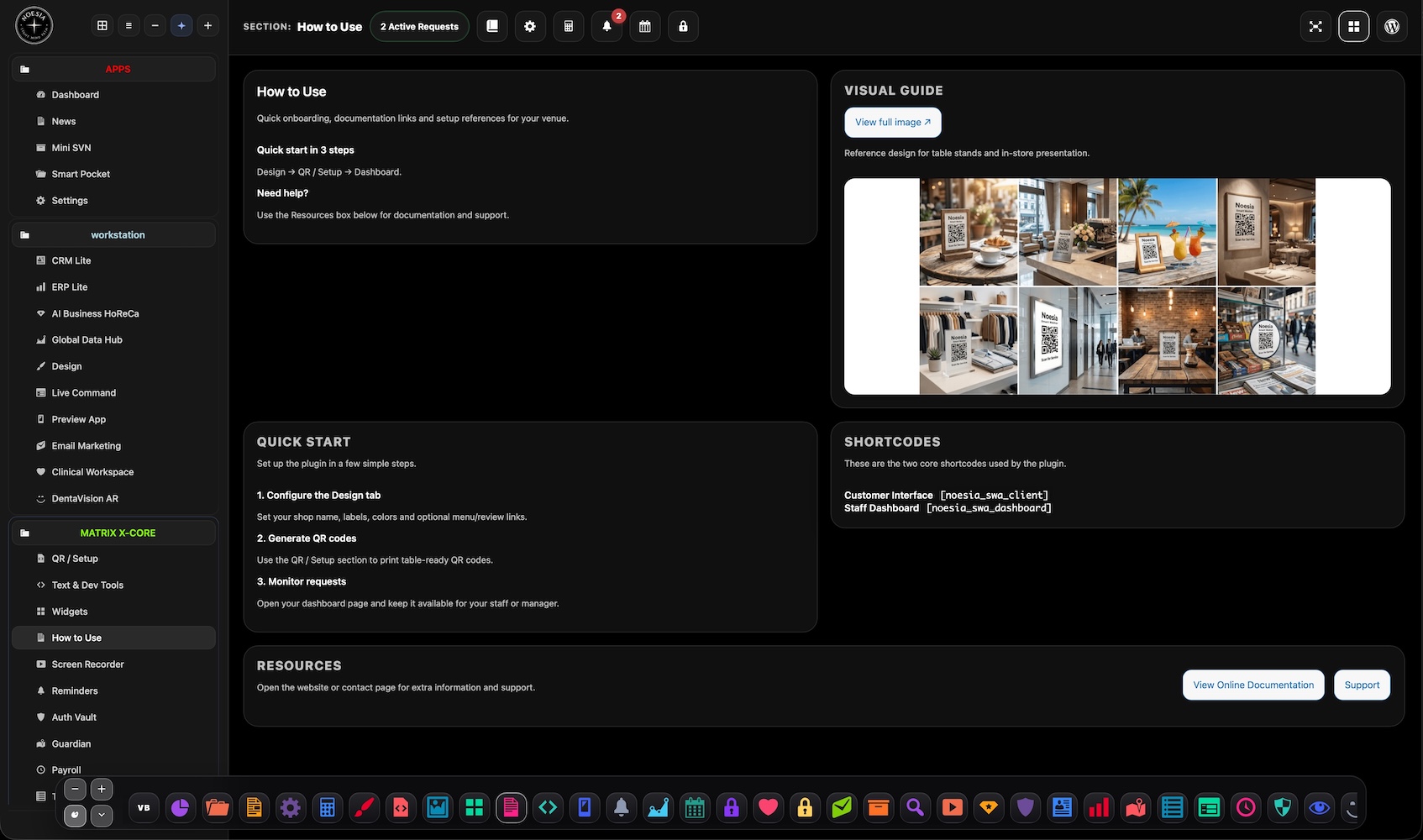
The screenshots help new users connect written guidance to the real interface faster.
Open How to Use before deeper modules so the operator understands the platform shape, the first actions to take, and what matters most at the beginning.
Use the page as a guided explanation surface while introducing the system to staff or supervisors during the first session.
Point users here first when their questions are really about structure, sequence, and initial usage rather than bugs.
Use this page to decide which module the operator should read next instead of dropping them into the full catalog with no orientation.
Issue: the operator expects deep module behavior from this page alone.
Why it happens: How to Use is an orientation layer, not a replacement for every detailed module guide.
What to do: use this page for structure and first actions, then continue into the dedicated module documentation pages.
Issue: the guidance exists, but the team still hesitates.
Why it happens: the installation may not be fully configured yet, so the references on the page do not match a complete real environment.
What to do: finish the basic setup first, then use the page again as the starting orientation layer.
Issue: the user understands the basics but does not know the next module to enter.
Why it happens: onboarding without role-based priorities can still feel broad.
What to do: direct the user to Dashboard for overview first, then to Settings or the most relevant operational module for their role.
Issue: the user expects a different screen flow than what the images suggest.
Why it happens: the guidance page is a learning aid, not a one-screen summary of the entire platform.
What to do: use the images for orientation and then continue to the exact module page that matches the desired workflow.
Yes. It belongs to the free tier and acts as the built-in guidance layer of the platform.
No. It is most useful for beginners, but managers and admins can also use it for onboarding other users.
No. It helps users begin correctly, then points them toward the deeper module pages for full detail.
It depends on the situation. For absolute first-time users, it can be useful before deeper operational screens.
Yes. That is one of the most practical uses of the module.
Because onboarding works best when the guidance points to real configured destinations and not fallback states everywhere.
Yes. It is meant to answer structural and first-use questions before they become support tickets.
Usually Dashboard first, then Settings or the most relevant operational module for the user role.
Yes. It can still act as a reference page for refresher onboarding and internal training.
No. It is intentionally written as an operator-friendly guidance surface.
Yes. That is one of its main jobs inside the documentation ecosystem.
Yes. Even a guidance page benefits from the same consistent shell, ownership, and documentation flow as the rest of the modules.
The Noesia Matrix is the shared architecture language and module fabric behind Noesia Smart Waiter. This module is not just a static page; it sits inside an isolate-first modular system designed for shell-driven navigation, clean section ownership, extensible widget zones, and future-safe expansion.
The architecture direction is intentionally high-control: modular ownership, isolated assets, lazy-ready behavior, clean settings flow, predictable prefixes, maintainable service boundaries, and enterprise-safe discipline around structure, security, and extensibility. Noesia transcends the definition of a standard WordPress plugin, operating as a robust platform built upon enterprise-grade Service-Oriented Design.
Here is how the core engine is designed to minimize bloat, maximize stability, and keep the experience consistently fast and responsive:
Event-Driven Inversion of Control (IoC): The platform follows an IoC pattern via a decoupled Event Bus. The central core acts as a “Logic-Less Host” (Blind / DUMMY Kernel). It does not tightly bind itself to module internals; modules announce their own presence, capabilities, and state through controlled registration flows.
The Micro-Frontend Paradigm (MFE): The UI is not a giant monolithic block. Each application behaves as an independent Micro-Frontend with its own dynamic assets, specialized logic, and UI contracts.
Strict Asset Isolation & Lazy-Loading: Resource usage stays disciplined. A module’s CSS, JavaScript, and data components are loaded only when the user reaches or interacts with that specific application surface.
Decoupled Registry Pattern: The dynamic discovery layer allows applications to be added or removed quickly without rewriting core logic. If one application encounters an issue, the architecture is designed to contain that impact instead of cascading it across the platform.
Enterprise-Grade Security & Stability: The platform is reinforced with strict input sanitization, dynamic registry routing, and defensive safety gates across the stack. The data layer and the user interface remain deliberately separated for maintainability and risk control.
The Result: A scalable hospitality and clinical operating system engineered to manage mission-critical workflows securely — from intimate cafés to high-traffic venues and sensitive medical environments.
When you open a ticket, include one clean screenshot, the exact visible error text, short reproduction steps, and whether the problem is constant or intermittent. That reduces back-and-forth and speeds up resolution.
Open SupportEnter the application layer: Explore the full Noesia Smart Waiter ecosystem and discover how each isolated module helps serve hospitality, operations, business workflows, and the wider mission to reimagine life through smarter software.
Scroll into the Matrix: The catalog below is the live gateway to the platform. Move through Free and Pro environments, open each documentation page, and step directly into the next application surface.