Restaurant and café owners
Useful when the public QR experience needs stronger branding, cleaner action wording, and venue-specific button behavior.

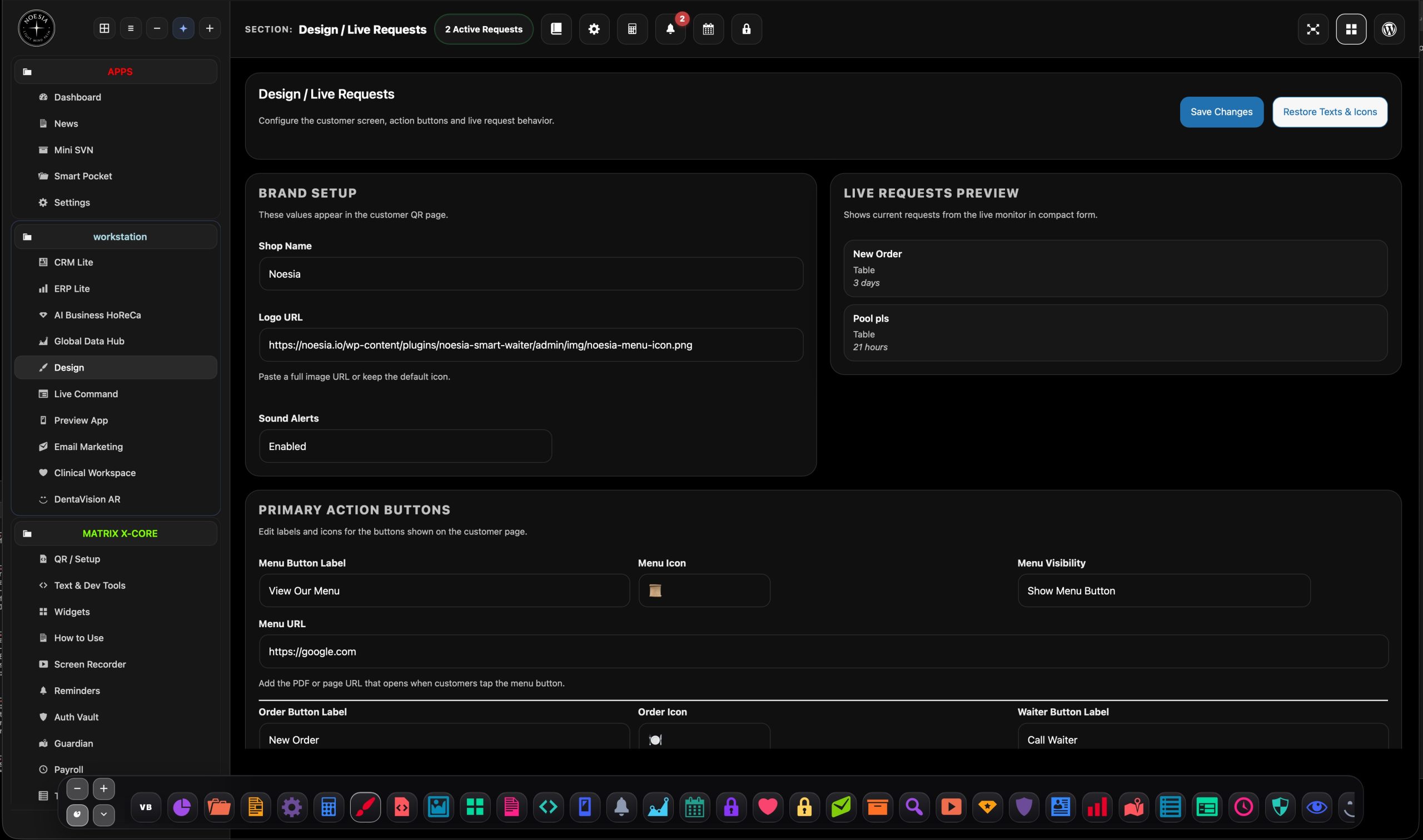
Design / Live Requests is the customer-facing configuration surface of Noesia Smart Waiter. It controls brand setup, shop logo, action button labels and icons, menu visibility, optional custom actions, review CTA, color palette, sound alerts, and the live request preview that supports the real-time service experience on the QR page.
Open the dedicated presentation and discover the real-time service flow, customer request logic, and how Live Command operates inside the Noesia Smart Waiter ecosystem.
Open Full PresentationUseful when the public QR experience needs stronger branding, cleaner action wording, and venue-specific button behavior.
Useful when the team wants to control the customer-facing screen, live request signals, and optional CTAs without developer work.
Useful for venues that care about logo, text, color palette, and button language consistency across every customer interaction surface.
Admin path: open the Noesia Smart Waiter shell and select Design / Live Requests from the free module navigation.
Tier: this module belongs to the Free layer.
Public impact: the values configured here flow into the customer QR experience, button labels, optional review CTA, and visual identity of the customer screen.
Start with the shop name and logo URL so the customer screen reflects the actual venue identity from the beginning.
Review menu, order, waiter, and bill labels and icons so the public QR screen matches the real service flow of the venue.
Set custom buttons and review CTA only when they add real value to the guest flow instead of creating button clutter.
Apply background, title, and text colors, then confirm whether sound alerts should stay enabled for the live request workflow.
Enter the module from the shell and start from the brand setup block before changing any action buttons.
Set labels, icons, menu visibility, and the menu destination so the QR screen matches the real venue journey.
Add custom actions only where useful, set the review URL if needed, and tune the public-facing palette to the venue style.
Save changes, review the live request preview, and validate that the customer QR screen now reflects the intended experience.
This is where the shop name and logo URL are defined for the customer QR screen.
The compact preview shows the current request state from the live monitor so operators can understand what the customer layer is producing.
The menu, order, waiter, and bill groups control the main buttons customers will actually tap.
Custom Button 1, Custom Button 2, and Review CTA let the venue extend the public experience without editing templates.
Set the shop name, upload the logo URL, pick the public palette, and save a customer-facing screen that already feels specific to the venue instead of generic.
Use menu visibility controls when the venue wants customers to focus on waiter, bill, order, or custom service requests instead of a menu destination.
Configure the custom buttons with the exact labels and icons that reflect how the venue actually operates beyond the default restaurant actions.
Activate the optional review CTA and keep live requests visible so the same customer screen can support both service flow and feedback growth.
Issue: customers cannot see the menu action.
Why it happens: menu visibility may be disabled or the public screen is still showing stale output.
What to do: confirm that Show Menu Button is enabled, save changes again, and clear any page cache involved in the public QR view.
Issue: the logo is missing or broken on the customer-facing screen.
Why it happens: the logo URL may be invalid, blocked, or pointing to an image that is no longer available.
What to do: paste a valid full image URL, save the module again, and reload the public page after cache is cleared.
Issue: the compact preview says there are no active requests.
Why it happens: there may truly be no active requests, or the request cycle has already been cleared or completed.
What to do: create a real test request from the customer side and confirm the live monitor is receiving it before rechecking the preview.
Issue: the button runs but the public screen still looks wrong.
Why it happens: old browser cache or cached public output can keep showing the previous version even after restore.
What to do: use the restore button, save changes, then clear cache and reload the public QR page in a fresh browser session.
Yes. It belongs to the free tier.
Yes. This is the main configuration surface for the customer-facing QR experience.
Yes. Menu, Order, Waiter, Bill, and custom button labels and icons are editable from this module.
Yes. Menu visibility can be switched on or off depending on the venue flow you want.
Yes. Two custom quick action slots are provided for venue-specific use cases.
Yes. The module includes a review CTA with editable label and destination URL.
Yes. Background, title, and text colors can all be configured from the palette controls.
Yes. Sound alerts can be enabled or disabled depending on the venue setup.
It resets key labels and icons back to their intended default values for a clean restart.
Yes. A compact preview helps the team see current request activity from the live monitor layer.
The Noesia Matrix is the shared architecture language and module fabric behind Noesia Smart Waiter. This module is not just a static page; it sits inside an isolate-first modular system designed for shell-driven navigation, clean section ownership, extensible widget zones, and future-safe expansion.
The architecture direction is intentionally high-control: modular ownership, isolated assets, lazy-ready behavior, clean settings flow, predictable prefixes, maintainable service boundaries, and enterprise-safe discipline around structure, security, and extensibility. Noesia transcends the definition of a standard WordPress plugin, operating as a robust platform built upon enterprise-grade Service-Oriented Design.
Here is how the core engine is designed to minimize bloat, maximize stability, and keep the experience consistently fast and responsive:
Event-Driven Inversion of Control (IoC): The platform follows an IoC pattern via a decoupled Event Bus. The central core acts as a “Logic-Less Host” (Blind / DUMMY Kernel). It does not tightly bind itself to module internals; modules announce their own presence, capabilities, and state through controlled registration flows.
The Micro-Frontend Paradigm (MFE): The UI is not a giant monolithic block. Each application behaves as an independent Micro-Frontend with its own dynamic assets, specialized logic, and UI contracts.
Strict Asset Isolation & Lazy-Loading: Resource usage stays disciplined. A module’s CSS, JavaScript, and data components are loaded only when the user reaches or interacts with that specific application surface.
Decoupled Registry Pattern: The dynamic discovery layer allows applications to be added or removed quickly without rewriting core logic. If one application encounters an issue, the architecture is designed to contain that impact instead of cascading it across the platform.
Enterprise-Grade Security & Stability: The platform is reinforced with strict input sanitization, dynamic registry routing, and defensive safety gates across the stack. The data layer and the user interface remain deliberately separated for maintainability and risk control.
The Result: A scalable hospitality and clinical operating system engineered to manage mission-critical workflows securely — from intimate cafés to high-traffic venues and sensitive medical environments.
When you open a ticket, include one clean screenshot, the exact visible error text or wrong result state, short reproduction steps, and whether the problem is constant or intermittent. That reduces back-and-forth and speeds up resolution.
Open SupportEnter the application layer: Explore the full Noesia Smart Waiter ecosystem and discover how each isolated module helps serve hospitality, operations, business workflows, and the wider mission to reimagine life through smarter software.
Scroll into the Matrix: The catalog below is the live gateway to the platform. Move through Free and Pro environments, open each documentation page, and step directly into the next application surface.