Owners and founders
Useful for checking business identity details, live requests, briefing signals, system readiness, and external operational context without navigating through multiple tabs.

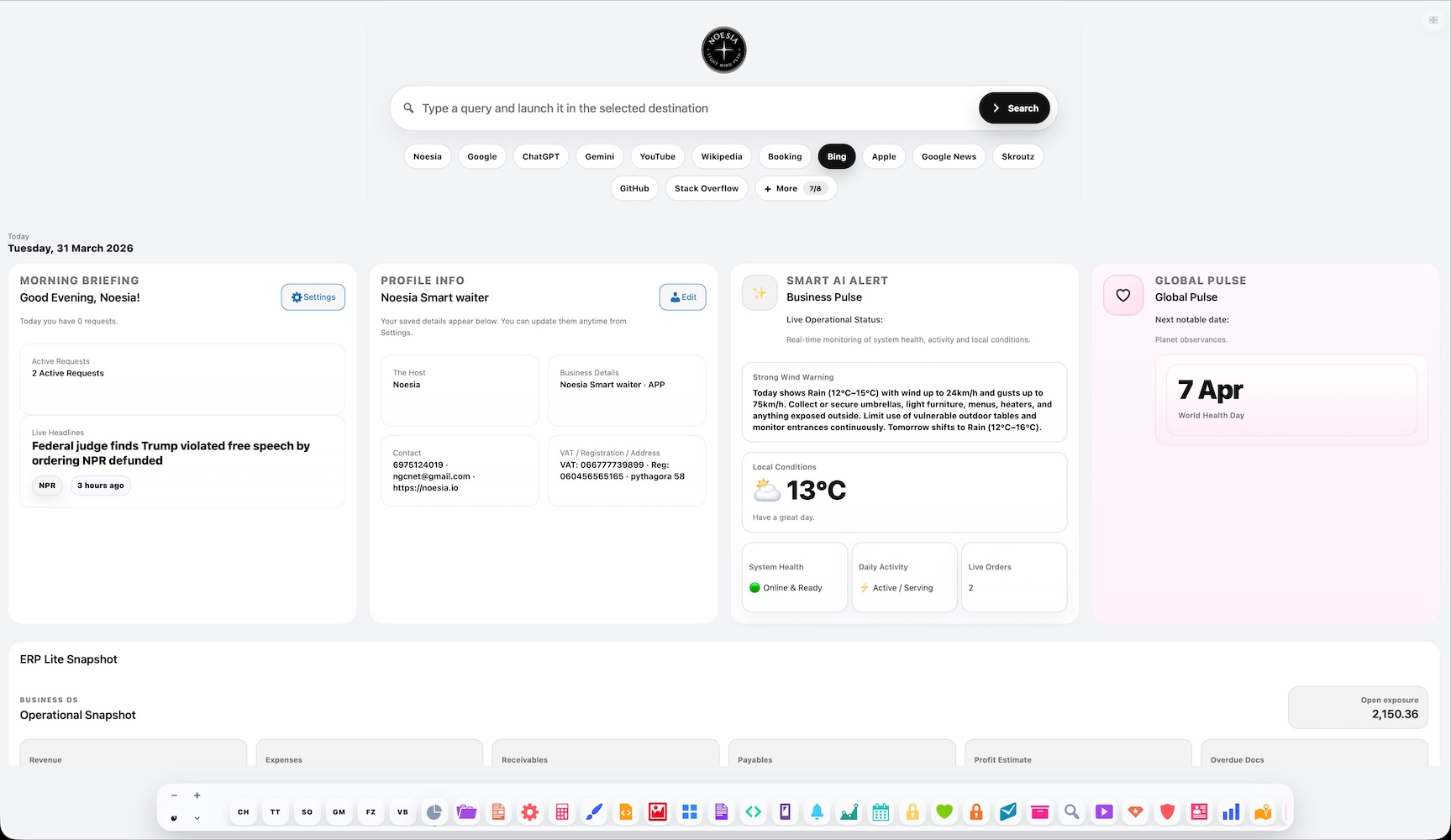
Dashboard is the live command surface of Noesia Smart Waiter. It brings together Morning Briefing, live counts, profile identity, Business Pulse, Global Pulse, Weather, headlines, and omni search shortcuts so the operator can understand the day in seconds and move into action without friction.
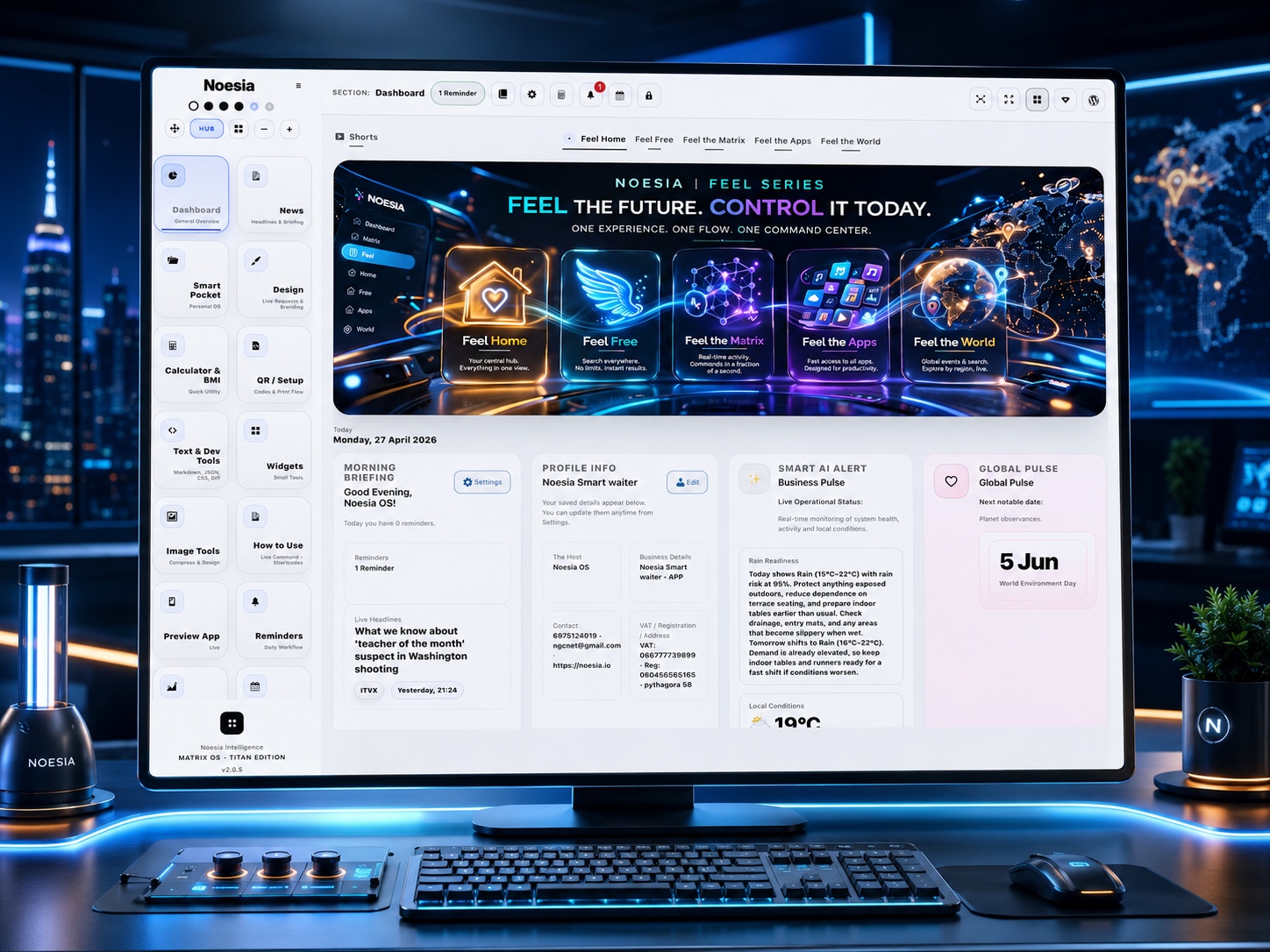
Useful for checking business identity details, live requests, briefing signals, system readiness, and external operational context without navigating through multiple tabs.
Useful for morning checks, daily monitoring, quick weather awareness, headline scanning, and jumping fast into settings or downstream modules when something needs action.
Useful as a launch surface for the rest of the platform, especially when the installation includes more modules, live widgets, and extended operational workflows.
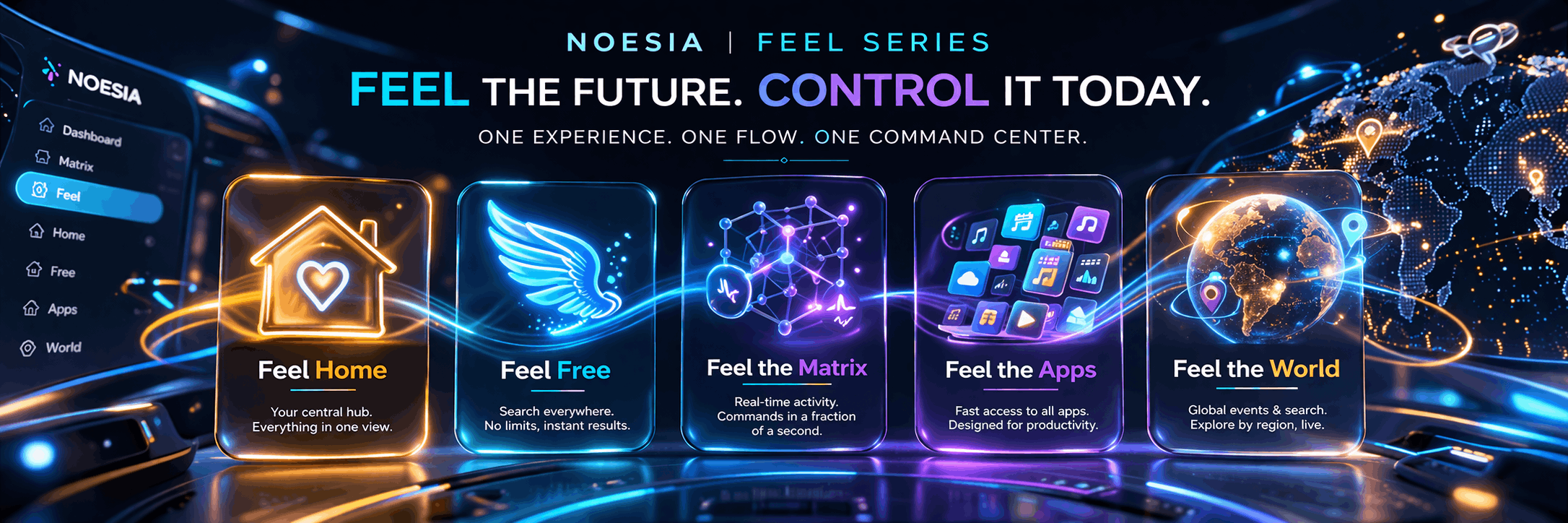
The new Feel series is not just another dashboard redesign. It is a new navigation philosophy that transforms Noesia into an experience: the user does not get lost inside buttons and screens, but enters the right mood, the right speed, and the right working environment instantly. Every tab opens fast, cleanly, and with direct access to what truly matters in that exact moment.
With Feel Home, Feel Free, Feel the Matrix, Feel the Apps, and Feel the World, Noesia opens a new path in technology: a path where the user navigates the way navigation should feel in the future — with emotion, speed, freedom, and control — but today.
Feel Home is where the user feels the entire Noesia universe operating as one intelligent control center. This is the space where the day’s overview, operational pulse, business identity, weather, key updates, and fast action entry points come together, so within seconds the user gains full orientation.
It delivers the feeling of “I entered, and I instantly understand everything.” Not scattered information, but a calm and powerful environment that gives the operator, owner, or administrator the sense that Noesia is the true home of visibility, decisions, and immediate action.
Feel Free is the feeling of freedom in search and discovery. With the new advanced search method, the user can instantly choose the most important destinations and websites where a search should be executed on the spot, without delay, without wasted steps, and without losing time.
This is exactly how user experience should feel without limitations — Noesia becomes the control center for the internet. From research and news to information, media, shopping, and targeted results, the user feels free to move with precision, speed, and full control of the web from one place.
Feel the Matrix is the most striking expression of real-time control. It brings together the recent activity of the entire site, bookmarks, quick links, and direct commands for the full Noesia application, making the user feel as if they are operating from inside the core of the system itself.
Here the experience becomes almost instant: write a note, listen to music, check the weather, play radio, read the news, jump into live tools, and open important actions in a fraction of a second. It is not just a beautiful tab — it is the feeling that the entire Noesia Matrix responds immediately to the next command.
Feel the Apps is the elegant, fast, and visually impressive gateway to the full Noesia application layer. The apps are presented with beautiful design, clear visual structure, and instant recognition logic, so the user finds exactly what they need without getting lost inside complex menus.
This is where speed meets aesthetics. App discovery becomes more natural, more premium, and more enjoyable, while the whole platform reveals what it truly is: an advanced operating ecosystem of tools, not a typical WordPress panel.
Feel the World takes the user from local context to global awareness without ever leaving the dashboard. It includes on-the-spot search for events and points of interest around the world, region-based exploration, city and country targeting, global comparisons, and a live world layer that connects the local view to the bigger picture.
The user can monitor local conditions, compare cities, explore world data, follow global signals, and move instantly from their own environment to the wider planet. It creates the feeling that Noesia is not only controlling a business or a dashboard, but opening a structured, fast, and technologically advanced window into the world itself.
Admin path: open the Noesia Smart Waiter admin area and select Dashboard from the left navigation of the plugin shell.
Tier: this module is part of the Free tier.
Role expectation: usually intended for administrators, managers, and site operators who can access the plugin control area.
Add host name, business details, contact information, website, VAT or registration information, and address so the Profile Info cards show meaningful content instead of fallback text.
Choose whether Morning Briefing should emphasize requests, reminders, or appointments. This affects the active badge context shown in the dashboard shell.
Make sure location and weather-related options are set correctly so the current weather and forecast render cleanly.
The dashboard becomes more useful when related modules such as weather, news, reminders, appointments, and live request workflows are active and supplying data.
Use it as the opening screen of the platform to see briefing counts, alerts, weather, global context, and profile state.
Check the greeting, live badge, and ticker to understand what needs attention first today.
Look at local conditions, system health, daily activity, and live order status to decide whether you need staffing, service, or configuration adjustments.
Confirm weather and headlines when they affect operations, outdoor service, daily planning, or customer flow expectations.
Use the built-in buttons and shell navigation to move to Settings or any operational module that needs immediate action.
The upper area combines greeting logic, live counts, active badge status, and fast contextual awareness. This is where an operator usually decides the first action of the day.
This area shows the identity and legal profile of the installation. When it still says “Not set yet,” go to Settings and finish the profile first.
This block summarizes local conditions and operational health. It is intended to read like a fast executive note rather than a raw data dump.
This block surfaces a notable global date or observance and acts as a lightweight context panel inside the dashboard experience.
Shows current conditions plus a short forecast, with clear min, max, rain, and condition visibility. This is especially useful when local service is weather-sensitive.
Lets the user launch searches to external services quickly. It is convenience-oriented and helps research without leaving the workflow mindset.
Open Dashboard, verify briefing count, confirm system health, scan weather, check profile completion, then move into the module that needs action first.
Use Business Pulse and Weather together to anticipate busy windows, indoor or outdoor priorities, and staffing adjustments when conditions change.
Right after setup, use Dashboard to confirm that the business identity fields are actually saved and rendered correctly before going live.
Use Morning Briefing, live headlines, and pulse cards to understand the day quickly instead of opening multiple modules one by one.
Issue: Dashboard does not appear in the admin shell or navigation.
Why it happens: the current account lacks the required capability, the module was disabled in a custom build, or the admin shell did not initialize correctly.
What to do: log in with an admin-capable account, refresh the plugin shell, and verify that the installation is not using a filtered or restricted module loader.
Issue: the briefing badge is present but the number looks incorrect or inactive.
Why it happens: the selected source points to requests while the real data lives in reminders or appointments, or the related module has no current records.
What to do: switch the Dashboard stats source, confirm that the related module actually contains live data for today, then refresh the admin screen.
Issue: the business identity box is visible, but one or more fields are empty.
Why it happens: the profile data was not saved yet, or only part of the profile was completed.
What to do: open Settings, complete the business identity fields, save, and then reload Dashboard to confirm the data is rendering correctly.
Issue: the weather card is blank, generic, or fails to update.
Why it happens: the location is missing, weather setup is incomplete, cached data is stale, or the server cannot complete outbound requests.
What to do: verify the weather-related settings first, save again, refresh the page, and if needed confirm that remote requests are not being blocked by hosting or security rules.
Issue: the forecast area renders but the day boxes are incomplete.
Why it happens: forecast data was not returned cleanly, the place was not resolved correctly, or localization data is incomplete for the current output.
What to do: verify the location, save the settings again, and clear any cache layer that may still be serving stale dashboard output.
Issue: the headlines panel never resolves into readable items.
Why it happens: the news feed has not populated yet, related assets did not load, or the current feed source is temporarily unavailable.
What to do: confirm the related news functionality is active, refresh Dashboard, and review whether the installation blocks remote feeds or feed parsing.
Issue: the pulse copy appears valid but not rich enough to be truly useful.
Why it happens: the installation still has limited operational data, minimal weather context, or too few module signals feeding the dashboard.
What to do: complete profile settings, enable the relevant live-data modules, and reassess after the platform has real counts, weather context, and daily activity flowing into the screen.
Issue: expected search engines do not appear in the launcher area.
Why it happens: extra engines were not chosen yet, browser local storage was cleared, or the current browser session blocks local persistence.
What to do: reselect the desired engines, keep browser storage enabled, and retest in a normal browser session without storage restrictions.
Issue: the screen loads, but parts of it still feel empty or fallback-heavy.
Why it happens: Dashboard is the front surface of the platform, so it depends on profile data, saved settings, and signals from complementary modules.
What to do: finish the basic configuration first, activate the supporting flows you intend to use, and then evaluate the module again under real operating conditions.
Issue: spacing, typography, or layout look wrong after embedding the documentation page.
Why it happens: external site CSS overrides the snippet, or changes were made outside the namespaced wrapper.
What to do: keep all custom documentation code inside the `noesia-swa-matrix` wrapper and avoid generic selectors when embedding the snippet into Elementor.
Yes. Dashboard belongs to the free tier and acts as the main operational overview surface of the platform.
Yes, but it becomes far more useful when weather, news, reminders, appointments, live requests, and related data-producing modules are also active.
Because fresh installs usually start without profile data, weather location, live records, or module-specific signals. Dashboard reflects what the platform already knows.
Yes. That is one of its core purposes: to give the operator fast orientation before opening deeper modules.
Yes. The briefing source can point to requests, reminders, or appointments depending on what matters most for your installation.
No, but the weather and pulse experience becomes much richer once the location and forecast pipeline are configured correctly.
Yes. It includes action-driven areas designed to send the operator directly toward corrections, configuration, or downstream modules.
It is the human-readable operational context layer that combines local conditions, activity signals, and system awareness into one short decision-support block.
It is the lighter awareness card that adds a broader contextual layer to the day, such as notable dates or observances.
No. They are convenience tools for fast lookups and do not block the main Dashboard workflow.
Yes. The wider Noesia architecture is built for modular expansion, widget-style growth, and future-safe composition.
No. Its logic is hospitality-first, but the same overview model is also useful anywhere an operator benefits from a live command surface.
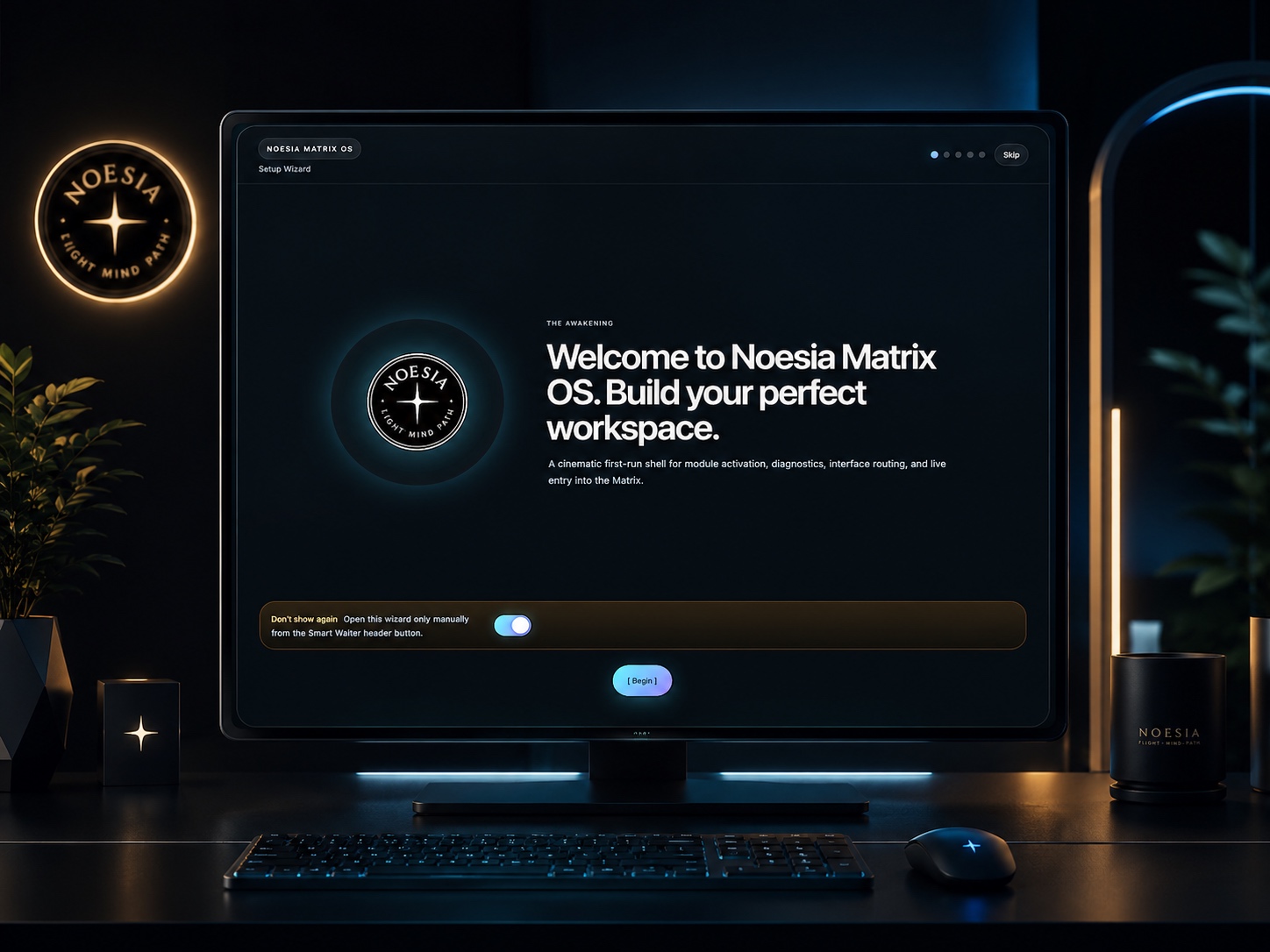
The Noesia Matrix is the shared architecture language and module fabric behind Noesia Smart Waiter. This module is not just a static page; it sits inside an isolate-first modular system designed for shell-driven navigation, clean section ownership, extensible widget zones, and future-safe expansion.
The architecture direction is intentionally high-control: modular ownership, isolated assets, lazy-ready behavior, clean settings flow, predictable prefixes, maintainable service boundaries, and enterprise-safe discipline around structure, security, and extensibility. Noesia transcends the definition of a standard WordPress plugin, operating as a robust platform built upon enterprise-grade Service-Oriented Design.
Here is how the core engine is designed to minimize bloat, maximize stability, and keep the experience consistently fast and responsive:
Event-Driven Inversion of Control (IoC): The platform follows an IoC pattern via a decoupled Event Bus. The central core acts as a “Logic-Less Host” (Blind / DUMMY Kernel). It does not tightly bind itself to module internals; modules announce their own presence, capabilities, and state through controlled registration flows.
The Micro-Frontend Paradigm (MFE): The UI is not a giant monolithic block. Each application behaves as an independent Micro-Frontend with its own dynamic assets, specialized logic, and UI contracts.
Strict Asset Isolation & Lazy-Loading: Resource usage stays disciplined. A module’s CSS, JavaScript, and data components are loaded only when the user reaches or interacts with that specific application surface.
Decoupled Registry Pattern: The dynamic discovery layer allows applications to be added or removed quickly without rewriting core logic. If one application encounters an issue, the architecture is designed to contain that impact instead of cascading it across the platform.
Enterprise-Grade Security & Stability: The platform is reinforced with strict input sanitization, dynamic registry routing, and defensive safety gates across the stack. The data layer and the user interface remain deliberately separated for maintainability and risk control.
The Result: A scalable hospitality and clinical operating system engineered to manage mission-critical workflows securely — from intimate cafés to high-traffic venues and sensitive medical environments.
When you open a ticket, include one clean screenshot, the exact visible error text, short reproduction steps, and whether the problem is constant or intermittent. That reduces back-and-forth and speeds up resolution.
Open SupportEnter the application layer: Explore the full Noesia Smart Waiter ecosystem and discover how each isolated module helps serve hospitality, operations, business workflows, and the wider mission to reimagine life through smarter software.
Scroll into the Matrix: The catalog below is the live gateway to the platform. Move through Free and Pro environments, open each documentation page, and step directly into the next application surface.