Founders, admins, and owners
Useful when one person or a small trusted team needs to keep TOTP codes, recovery paths, and sensitive access handling inside a private self-hosted environment rather than multiple random apps and screenshots.

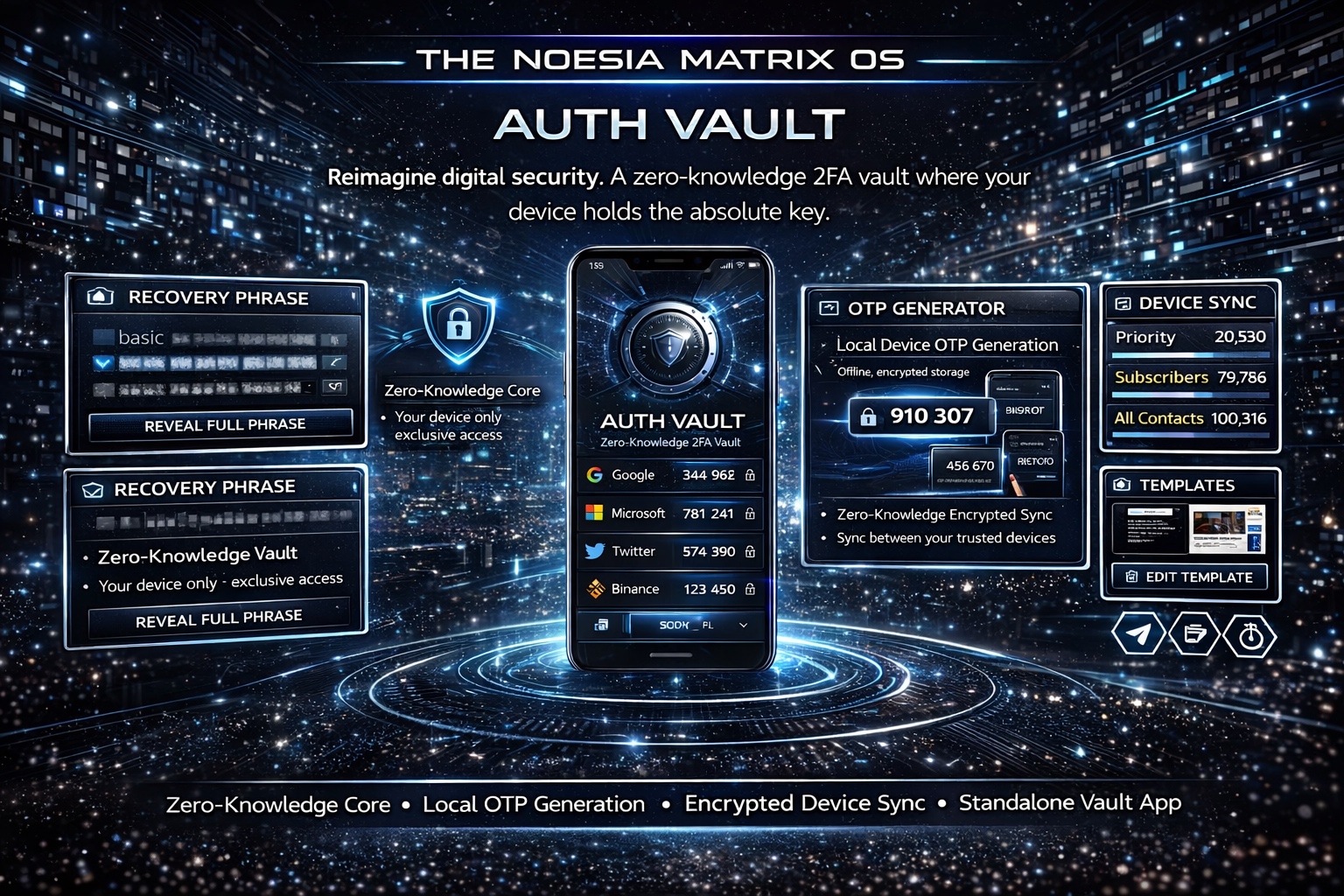
Auth Vault is the protected authentication environment of Noesia Smart Waiter. It is built as an ads-free, self-hosted, zero-knowledge style OTP vault that lets operators unlock locally, generate codes locally, install a standalone PWA on desktop or mobile, pair devices with one-time codes, sync only the encrypted package when they choose, and keep recovery, backup, and access handling inside a controlled premium interface rather than scattering sensitive authenticator data across third-party services.
Useful when one person or a small trusted team needs to keep TOTP codes, recovery paths, and sensitive access handling inside a private self-hosted environment rather than multiple random apps and screenshots.
Useful for deployments where many services, logins, and client environments must stay under disciplined access control, with encrypted backups and paired device handling available when needed.
Useful for people who want a dedicated app-like experience on Mac, Windows, iPhone, iPad, or other supported devices, while still keeping code generation local and the visual experience clean, fast, and ads-free.
A premium authentication cockpit for one-time passwords, 2FA workflows, QR setup, and private credential control inside the Noesia ecosystem.
Admin path: open the Noesia Smart Waiter admin shell and select Auth Vault from the module navigation.
Tier: this module belongs to the Pro layer.
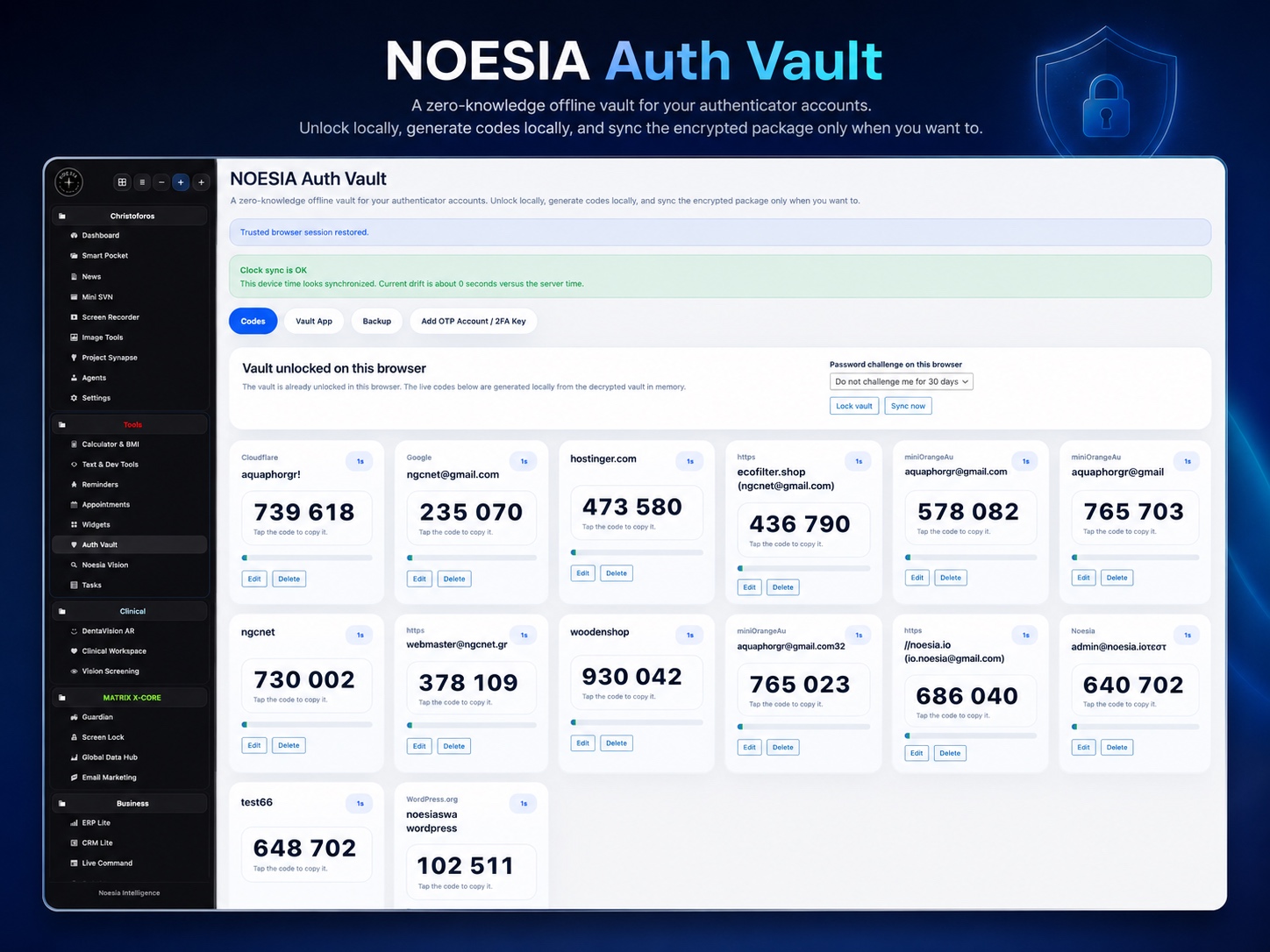
Main working areas: the admin side is structured around Codes, Vault App, Backup, and Add OTP Account / 2FA Key, while the public standalone surface acts as the installed Vault App experience.
Start by creating the vault and choosing a strong master password. If that password is lost, the encrypted vault cannot be decrypted, so treat it as a serious operational secret.
Open the Vault App route on the same site. Chrome or Edge on desktop usually show an install option such as “Install page as app”. Safari on Mac uses Add to Dock. iPhone and iPad use Add to Home Screen.
Generate a one-time pairing code from the admin dashboard, then open the Vault App on the second device and paste the code there. That imports the encrypted vault package and device sync token into the paired device flow.
Download an encrypted backup and store it safely. The backup file and its backup password are part of the recovery strategy and should not be handled casually.
Open Auth Vault in the admin shell or the installed Vault App and unlock it with the master password. Choose whether this browser should challenge every time or remain trusted for the available trust window.
Use QR first whenever possible. Scan the setup QR live, upload a QR image, paste the otpauth setup link, or enter the secret key manually when the original service leaves no better option.
Once the vault is unlocked, live TOTP codes are generated locally inside the current device context. This is one of the core strengths of the module and part of why the experience stays private and fast.
Use Sync now when the latest encrypted vault revision must be available on another paired device. This is an intentional action, not a noisy always-on dependency loop.
After installation, open the Vault App from the Dock, desktop, app launcher, or home screen and use it like a dedicated private utility. If a desktop install shell ever behaves oddly after changes, remove the old installed instance and add it again from the browser install path to refresh the shell cleanly.
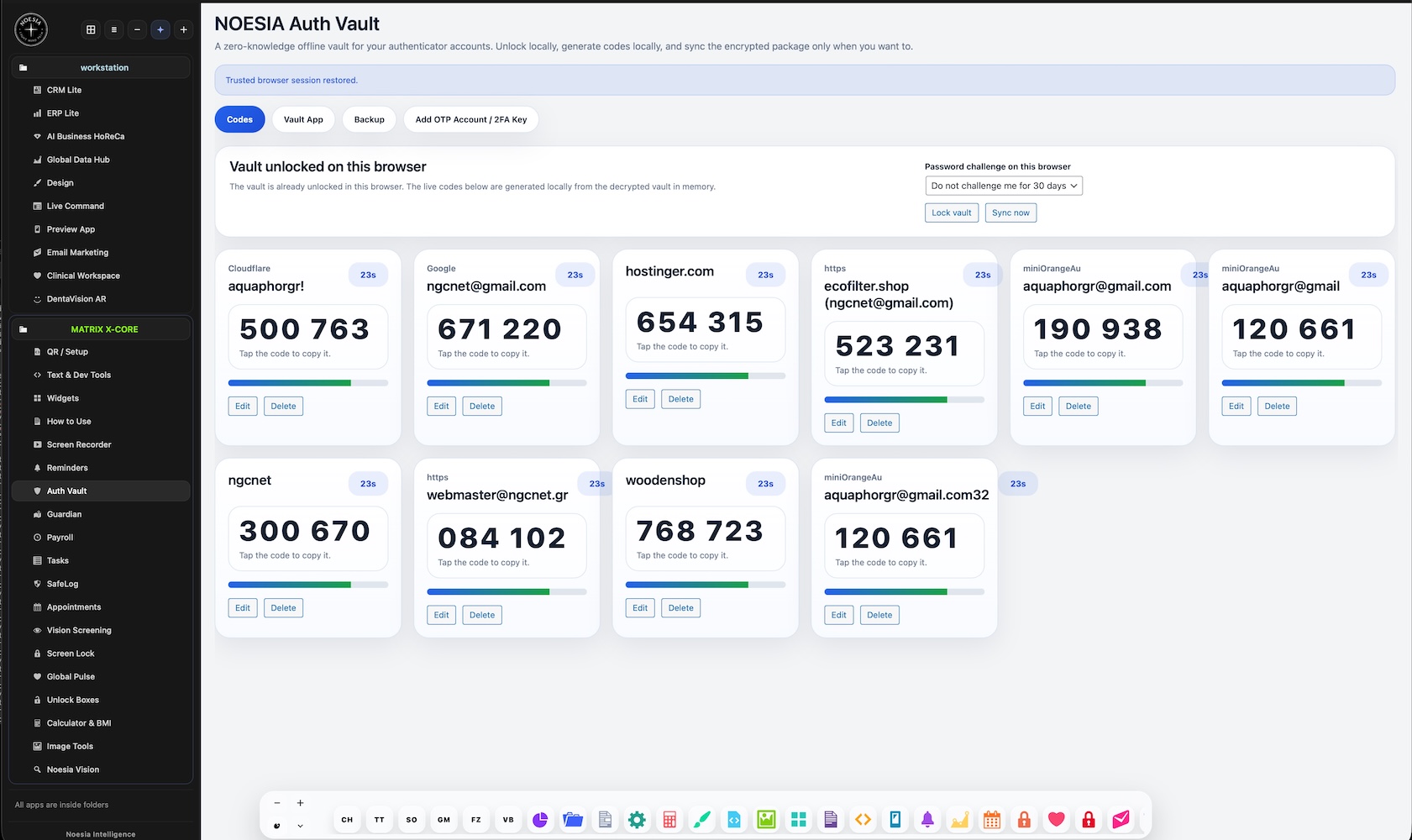
This is the daily-use screen where the unlocked vault reveals the account list and live code flow. It is the operational heart of the module.
This standalone route is the premium portable experience. It exists for the people who want Auth Vault to behave like a dedicated private app instead of another admin-only screen.
The pairing block creates the one-time code, shows expiry-sensitive onboarding logic, and helps the operator move an encrypted vault package to a second trusted device.
The backup area covers encrypted export and restore. This is the safety layer that serious users should never ignore.
This area handles live camera scanning, uploaded QR images, pasted setup links, and manual secret entry. It is built for real-world 2FA onboarding, not a single rigid method.
These controls define whether the vault remains convenient or strict in the current browser and make the difference between a casual toy and a serious security tool.
Move business-critical OTP accounts into one private self-hosted environment so founders and operators stop depending on random personal devices and fragmented app stores.
Open the Vault App route from the real site, install it from the browser menu, and use it as a dedicated desktop tool. This is especially useful for operators who need fast daily access without opening the full admin shell each time.
Generate a one-time pairing code, consume it on the second device, and then use Sync only when the encrypted vault revision should be refreshed there.
Download an encrypted backup, store it responsibly, and keep the original service recovery codes in a safe place so one lost device does not become a crisis.
Issue: the page opens, but the browser does not obviously offer installation.
Why it happens: Safari, Chrome, Edge, Firefox, and different platforms do not show the same prompt language or install behavior.
What to do: open the Vault App route itself and use the browser menu manually. Chrome or Edge on desktop often show “Install page as app”, while Safari on Mac uses “Add to Dock”.
Issue: the user expects the latest vault revision on another device, but it does not update.
Why it happens: the device may not be paired yet, the pairing code expired, or the current session is offline.
What to do: confirm the device was paired successfully, check the pairing window again, and remember that Sync needs an internet connection.
Issue: the second device rejects the code.
Why it happens: pairing codes are intentionally short-lived and expire after about 10 minutes.
What to do: generate a fresh code from the dashboard and complete the pairing flow again without delay.
Issue: the uploaded image is accepted but no valid account is created.
Why it happens: the image may not contain a valid authenticator QR code or the QR content does not carry a usable secret.
What to do: retry with the original setup QR from the service, use the setup link if available, or enter the secret manually as a fallback.
Issue: the installed PWA shell on Mac or Windows feels stale or inconsistent.
Why it happens: cached app shells or old standalone instances may survive after updates or environmental changes.
What to do: close the installed app, remove the old installed instance, then open the live Vault App route again and reinstall it. On Mac, that usually means adding it to the Dock again from Safari.
Issue: the operator no longer remembers the master password.
Why it happens: the vault is designed around encrypted local secrets, so the password is not something the system should be able to casually reveal.
What to do: use your encrypted backup and the correct backup password if available, and keep the original service recovery codes in a separate safe location.
Yes. Auth Vault belongs to the Pro layer.
Yes. The module is positioned as an ads-free, self-hosted authentication environment under your own platform control.
Yes. Local code generation is one of the core strengths of the module.
Yes. Where the browser supports it, the Vault App can be installed as a standalone PWA-style surface on desktop or mobile.
Safari on Mac typically uses Add to Dock from the browser menu on the Vault App route.
Chrome or Edge on desktop usually expose an option such as Install page as app or a similar install action.
No. The intended model is that sync transfers the encrypted vault package when you choose to do so.
Generate a one-time pairing code in the dashboard, open the Vault App on the second device, and paste the code there before it expires.
Yes. You can scan a QR, upload a QR image, paste the setup link, or enter the secret key manually when needed.
Yes. The module supports encrypted backup export and restore flows.
Yes. The module can ask every time or trust the browser for up to 30 days.
Yes. The module includes a WordPress login 2FA service layer with authenticator or backup code handling.
The Noesia Matrix is the shared architecture language and module fabric behind Noesia Smart Waiter. This module is not just a static page; it sits inside an isolate-first modular system designed for shell-driven navigation, clean section ownership, extensible widget zones, and future-safe expansion.
The architecture direction is intentionally high-control: modular ownership, isolated assets, lazy-ready behavior, clean settings flow, predictable prefixes, maintainable service boundaries, and enterprise-safe discipline around structure, security, and extensibility. Noesia transcends the definition of a standard WordPress plugin, operating as a robust platform built upon enterprise-grade Service-Oriented Design.
Here is how the core engine is designed to minimize bloat, maximize stability, and keep the experience consistently fast and responsive:
Event-Driven Inversion of Control (IoC): The platform follows an IoC pattern via a decoupled Event Bus. The central core acts as a “Logic-Less Host” (Blind / DUMMY Kernel). It does not tightly bind itself to module internals; modules announce their own presence, capabilities, and state through controlled registration flows.
The Micro-Frontend Paradigm (MFE): The UI is not a giant monolithic block. Each application behaves as an independent Micro-Frontend with its own dynamic assets, specialized logic, and UI contracts.
Strict Asset Isolation & Lazy-Loading: Resource usage stays disciplined. A module’s CSS, JavaScript, and data components are loaded only when the user reaches or interacts with that specific application surface.
Decoupled Registry Pattern: The dynamic discovery layer allows applications to be added or removed quickly without rewriting core logic. If one application encounters an issue, the architecture is designed to contain that impact instead of cascading it across the platform.
Enterprise-Grade Security & Stability: The platform is reinforced with strict input sanitization, dynamic registry routing, and defensive safety gates across the stack. The data layer and the user interface remain deliberately separated for maintainability and risk control.
The Result: A scalable hospitality and clinical operating system engineered to manage mission-critical workflows securely — from intimate cafés to high-traffic venues and sensitive medical environments.
When you open a ticket, include one clean screenshot, the exact visible message or wrong state, short reproduction steps, and whether the issue happens in the browser shell, the installed PWA, or during sync/pairing. That reduces back-and-forth and speeds up resolution.
Open SupportEnter the application layer: Explore the full Noesia Smart Waiter ecosystem and discover how each isolated module helps serve hospitality, operations, business workflows, and the wider mission to reimagine life through smarter software.
Scroll into the Matrix: The catalog below is the live gateway to the platform. Move through Free and Pro environments, open each documentation page, and step directly into the next application surface.