Support and troubleshooting teams
Useful when staff must capture a real issue exactly as it happened, send a replay to a colleague or developer, and reduce misunderstanding during bug reporting, client support, or internal diagnosis.

Screen Recorder is the secure capture workspace of Noesia Smart Waiter. It allows teams to record their screen directly from the browser, manage recordings inside a dedicated video library, control playback and downloads, create protected share links, and keep evidence, support material, audits, training clips, and operational walkthroughs inside a controlled self-hosted environment rather than scattering sensitive recordings across random external tools.
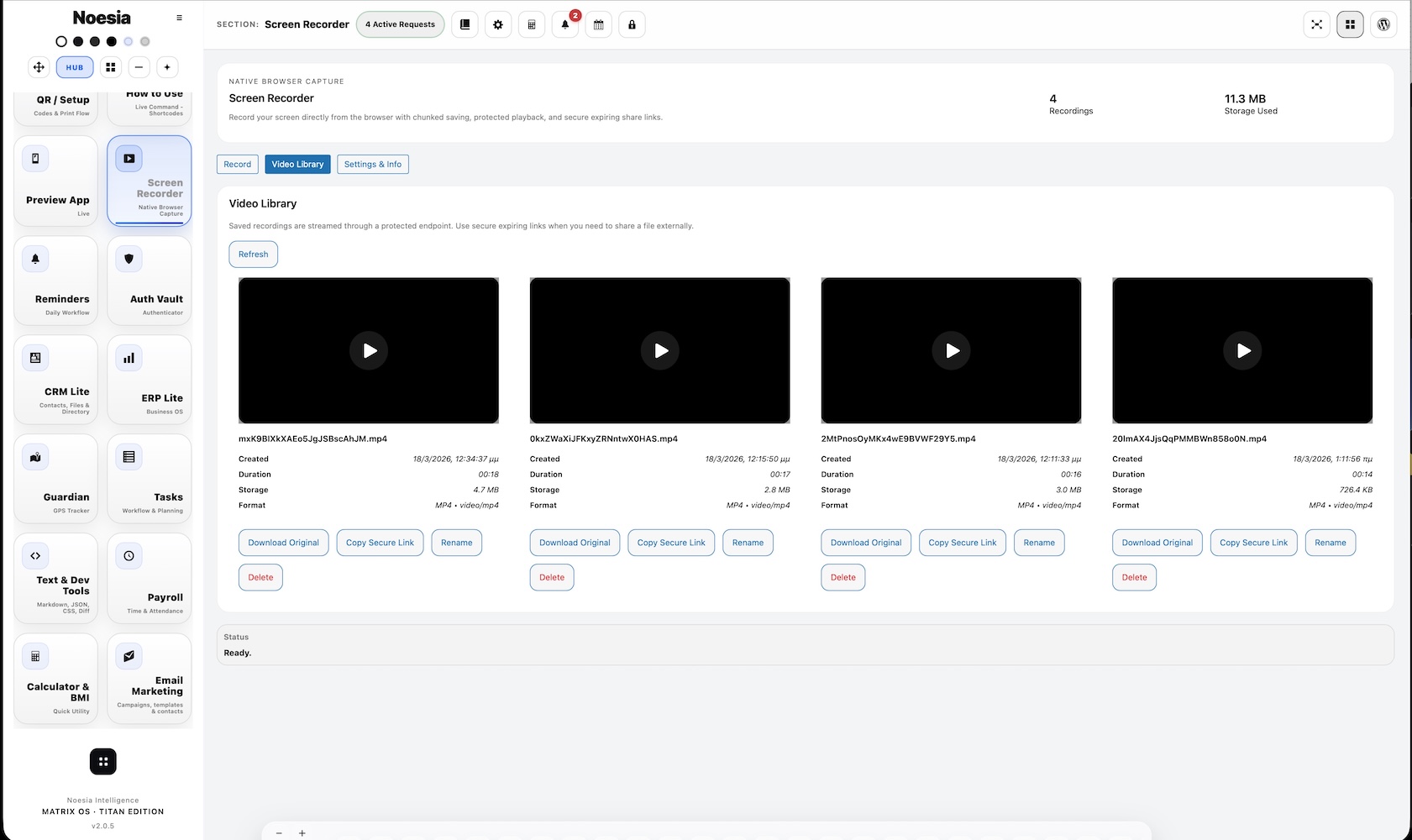
Useful when staff must capture a real issue exactly as it happened, send a replay to a colleague or developer, and reduce misunderstanding during bug reporting, client support, or internal diagnosis.
Useful for short process walkthroughs, internal guidance clips, staff training, and repeatable “this is how it works” explanations without holding long live calls every time.
Useful when the business needs visual proof, action history, controlled sharing, and an easy way to preserve context before a case is escalated or archived.
Admin path: open the Noesia Smart Waiter admin shell and select Screen Recorder from the module navigation.
Tier: this module belongs to the Pro layer.
Main working areas: the module is typically organized around Record, Video Library, and Settings & Info.
Screen recording should be treated as a secure browser feature. Confirm the admin environment is running under HTTPS and that the browser actually supports the capture APIs needed for recording.
Pick the right default approach for your team: screen or tab, with or without cursor, with or without microphone, and a reasonable max duration so recordings stay useful instead of chaotic.
Before recording a large batch of clips, inspect the system info panel and verify upload_max_filesize, post_max_size, memory_limit, and execution thresholds are sensible for your environment.
Decide internally what your team is allowed to record, share, or retain. The module is powerful, so responsible use and controlled data handling should be part of the operating policy from day one.
Review your current preferences first so the operator knows the intended resolution, audio mode, cursor behavior, and duration limit before recording begins.
Select the exact monitor, window, or browser tab you want to capture. Keep the surface narrow when privacy matters and broader only when the full context is necessary.
Use the live control state to monitor whether the session is idle, recording, or finalizing. Pause when needed, then stop when the proof or walkthrough is complete.
Open the Video Library and confirm the saved clip, preview quality, format, duration, and storage footprint before you share it with anyone else.
Use Download Original for direct archive needs or Copy Secure Link when another person needs controlled access to the clip without full administrative exposure.
The main recording area handles the start action, countdown, live state, and the feeling of “this is being captured right now.” It is the operational heartbeat of the module.
This summary shows the expected configuration before the session starts: resolution, audio mode, cursor, and max duration. It helps reduce accidental bad captures.
This area matters because browsers do not always grant exactly what the operator expected. Real format, real FPS, real surface, and real resolution make troubleshooting more honest.
Pause and Stop are practical, not decorative. When teams are recording an issue, they need immediate control, not hidden steps after the fact.
The library is where recordings become manageable assets rather than temporary browser events. Preview, rename, delete, download, and secure sharing all live here.
Resolution, audio source, cursor visibility, and max duration are deliberately simple so the module stays effective and lightweight instead of turning into an overbuilt video suite.
Server limits and environment checks matter because screen recording is not just a visual feature; it is also a storage and execution feature that depends on real infrastructure.
The module acknowledges platform-specific reality. Cursor style is not magically invented inside the video; it depends on the operating system’s own pointer behavior before capture starts.
Record the issue exactly as it appears, save it, copy a secure link, and send the proof to the person who must investigate without trying to explain a complex flow only with words.
Show a real process one time, record it cleanly, and reuse the clip for new staff instead of repeating the same live explanation again and again.
Capture a workflow, settings state, or system condition at a precise point in time and preserve visual context before changes are made.
Instead of pushing sensitive visual material through random external services, teams can keep the capture inside their own platform and share it in a more controlled way.
A short precise clip often removes several rounds of misunderstanding. The developer sees the exact click path, the exact moment of failure, and the exact screen state.
Record a configuration or workflow before a change, then record the same path again after the change to compare outcomes with evidence instead of vague memory.
Issue: the module stays idle when the user tries to start recording.
Why it happens: the browser may block screen capture, the environment may not be secure, or the required capture APIs are unavailable.
What to do: verify HTTPS, browser support, and screen-capture permissions first before assuming the module is broken.
Issue: recording cannot begin because the environment is not treated as secure.
Why it happens: secure screen capture is expected to run under HTTPS context.
What to do: move the installation to proper HTTPS and test again in a normal modern browser session.
Issue: the user expected a browser tab but captured a window or monitor instead.
Why it happens: the actual selected share surface came from the browser picker, not from wishful expectation.
What to do: stop the session, start again, and choose the correct tab, window, or monitor deliberately.
Issue: the clip saved correctly but contains no microphone or system sound.
Why it happens: the chosen audio mode, browser capabilities, or share-surface restrictions may not support the intended audio capture.
What to do: review Audio Source settings, recheck browser permissions, and verify whether the chosen surface actually supports the audio path you want.
Issue: the recording captures the native cursor but it is not obvious enough in the final clip.
Why it happens: the module does not fake an artificial cursor highlight inside the video.
What to do: adjust the operating system’s own cursor settings before recording, especially on macOS or Windows accessibility settings.
Issue: recording stops before the user expected it to stop.
Why it happens: the chosen max duration limit may have been reached, or the browser’s sharing state ended.
What to do: review the duration setting first and confirm the browser did not terminate screen sharing externally.
Issue: the operator recorded something, but no saved item appears in the library.
Why it happens: the session may have failed during finalization, the save may not have completed, or an upload/storage issue occurred.
What to do: inspect status messages, check server limits, and retry with a shorter controlled capture to confirm the saving pipeline is healthy.
Issue: a shared link exists but the receiver cannot use it as expected.
Why it happens: the secure link may have limited access conditions, may have expired, or the receiver may be using the wrong environment.
What to do: regenerate the secure link when needed and confirm the intended recipient is opening the correct final link.
Issue: the user chose a target profile but the resulting clip looks different.
Why it happens: actual browser-granted capture can differ from intended settings.
What to do: review Actual Capture diagnostics and treat those values as the truth of what was really recorded.
Issue: the interface loads, yet save, list, or finalization behavior feels incomplete.
Why it happens: the local AJAX owner, storage path, or backend service layer may not be fully ready in the current build or environment.
What to do: refresh the module, inspect errors, and verify the module’s assets, AJAX owner, and storage layer are present and healthy.
Yes. Screen Recorder belongs to the Pro layer.
Yes. The module is built around secure browser-based capture rather than a separate heavy desktop tool.
Yes. Depending on the browser picker, the user can choose a browser tab, a window, or a full monitor surface.
None, Microphone, System Audio, and Microphone + System Audio.
Yes. The module includes practical choices such as Native, 720p, and 1080p.
Yes. Cursor capture can be enabled or disabled as part of the settings workflow.
Yes. A maximum duration limit can be chosen to keep recordings disciplined and storage-aware.
Yes. The Video Library is designed exactly for that.
Yes. Download Original is part of the operational library actions.
Yes. The module supports secure-link sharing for controlled access.
Yes. It includes system and browser readiness information so operators can diagnose constraints before blaming the workflow.
No. It is a practical secure capture and evidence workspace, not a giant cinematic editing studio.
The Noesia Matrix is the shared architecture language and module fabric behind Noesia Smart Waiter. This module is not just a static page; it sits inside an isolate-first modular system designed for shell-driven navigation, clean section ownership, extensible widget zones, and future-safe expansion.
The architecture direction is intentionally high-control: modular ownership, isolated assets, lazy-ready behavior, clean settings flow, predictable prefixes, maintainable service boundaries, and enterprise-safe discipline around structure, security, and extensibility. Noesia transcends the definition of a standard WordPress plugin, operating as a robust platform built upon enterprise-grade Service-Oriented Design.
Here is how the core engine is designed to minimize bloat, maximize stability, and keep the experience consistently fast and responsive:
Event-Driven Inversion of Control (IoC): The platform follows an IoC pattern via a decoupled Event Bus. The central core acts as a “Logic-Less Host” (Blind / DUMMY Kernel). It does not tightly bind itself to module internals; modules announce their own presence, capabilities, and state through controlled registration flows.
The Micro-Frontend Paradigm (MFE): The UI is not a giant monolithic block. Each application behaves as an independent Micro-Frontend with its own dynamic assets, specialized logic, and UI contracts.
Strict Asset Isolation & Lazy-Loading: Resource usage stays disciplined. A module’s CSS, JavaScript, and data components are loaded only when the user reaches or interacts with that specific application surface.
Decoupled Registry Pattern: The dynamic discovery layer allows applications to be added or removed quickly without rewriting core logic. If one application encounters an issue, the architecture is designed to contain that impact instead of cascading it across the platform.
Enterprise-Grade Security & Stability: The platform is reinforced with strict input sanitization, dynamic registry routing, and defensive safety gates across the stack. The data layer and the user interface remain deliberately separated for maintainability and risk control.
The Result: A scalable hospitality and clinical operating system engineered to manage mission-critical workflows securely — from intimate cafés to high-traffic venues and sensitive medical environments.
When you open a ticket, include one clean screenshot, the exact visible error text or wrong result, short reproduction steps, and whether the problem is constant or intermittent. That reduces back-and-forth and speeds up resolution.
Open SupportEnter the application layer: Explore the full Noesia Smart Waiter ecosystem and discover how each isolated module helps serve hospitality, operations, business workflows, and the wider mission to reimagine life through smarter software.
Scroll into the Matrix: The catalog below is the live gateway to the platform. Move through Free and Pro environments, open each documentation page, and step directly into the next application surface.