Business owners
Useful for setting the visual identity of the business, choosing what customers and staff will see, and keeping the platform aligned with the venue brand.

Settings is the central control surface of Noesia Smart Waiter. It is where the business defines identity, visual behavior, feature emphasis, and key runtime preferences for the whole platform. From shop name, logo, labels, icons, and sound behavior to weather and news language context, color logic, menu visibility, and general shell behavior, this module shapes how the entire installation feels and operates.
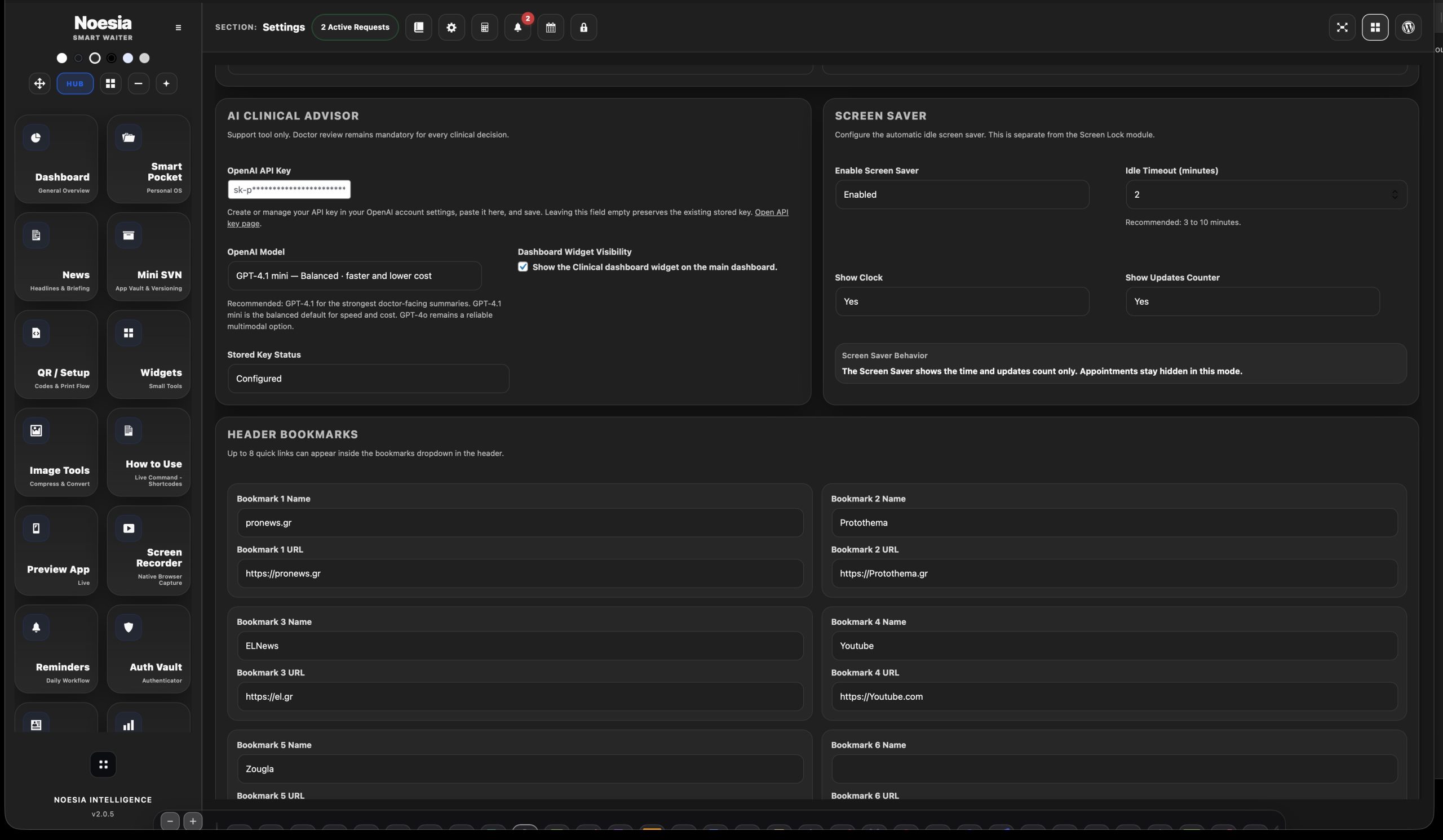
Useful for setting the visual identity of the business, choosing what customers and staff will see, and keeping the platform aligned with the venue brand.
Useful for controlling labels, icons, weather and news behavior, sound, menu visibility, and the larger shell experience of the plugin.
Useful during first setup, design refreshes, content corrections, or any time the installation needs to be tuned without touching deeper code.
Admin path: open the Noesia Smart Waiter admin area and select Settings from the plugin shell navigation.
Tier: this module is part of the Free tier.
Role expectation: intended mainly for administrators, owners, and managers who control how the platform looks and behaves.
Start with business name, logo, and the main identity details so the rest of the platform feels branded from the first moment.
Shape the customer-facing action surface so it matches the language and personality of the venue.
Set the dashboard or news language context so weather, news, pulse-style surfaces, and related output stay consistent.
Finish with sound alerts, visual color behavior, and Menu Visibility Manager decisions so the shell reflects the real operational needs of the venue.
This is usually the first serious control surface the business should configure before expecting the rest of the ecosystem to feel finished.
Save brand name, logo, and the action texts or icons that shape the customer-facing experience.
Adjust language-related and content-related settings that influence News, Weather, SMART AI ALERT, and Global Pulse style.
Use Menu Visibility Manager and related shell settings so the plugin exposes only what the installation actually needs.
Settings is not one-time-only. Use it whenever branding, wording, visibility, or context behavior changes later.
This area matters because it defines how the plugin represents the business visually and structurally from the top down.
This area matters because small text and icon choices shape the public Smart Waiter feel more than many users expect.
This affects how dashboard-aware surfaces such as News, Weather, and pulse-style content feel across the installation.
This gives the business control over the emotional tone and operational intensity of the experience.
This is one of the most practical areas because it lets the admin simplify the shell and expose only what matters.
Default restore paths matter because they let the admin recover from over-customization and return to a trusted state fast.
Set business name, logo, labels, icons, and colors so the customer-facing Smart Waiter flow looks like a real branded venue experience.
Use language-related settings so Weather, News, SMART AI ALERT, and Global Pulse feel unified instead of mixed or inconsistent.
Hide unused entry points and leave only the modules that the venue actually needs in daily operation.
When labels, icons, or styling drift too far, use the default restore path to get back to a known working baseline.
Issue: the business updated wording or icons, but the front still feels outdated.
Why it happens: changes may not have been saved as expected, or the installation may still be serving cached output.
What to do: save again, refresh the relevant page, and retest the public-facing flow after clearing any local or site-level cache that might still be active.
Issue: Weather, News, or pulse-style content does not feel unified.
Why it happens: dashboard language or news-related context may not match the intended output path.
What to do: review the relevant language settings first, then reload the dashboard-aware modules.
Issue: the shell exposes more entry points than the venue actually needs.
Why it happens: Menu Visibility Manager has not been used to tailor the installation yet.
What to do: simplify the shell by hiding what the current business does not actively use.
Issue: too many edits made the platform harder to maintain.
Why it happens: the business kept changing labels, icons, or visual behavior without a clear baseline strategy.
What to do: restore defaults where appropriate, then reapply only the changes that truly improve the experience.
Yes. It belongs to the free tier and acts as the central control surface of the platform.
Yes. Settings is the main place for identity and branding control.
Yes. This is one of the key roles of the module.
Yes. Default restore paths are important when the installation needs to return to a safe baseline.
Yes. Language and context choices here can influence dashboard-aware modules such as News, Weather, SMART AI ALERT, and Global Pulse.
Yes, where supported by the installation flow.
It lets the admin simplify the shell and expose only the parts of the plugin that the business actually wants visible.
Yes. Small visual decisions can strongly change how premium, calm, or intense the whole experience feels.
No. It is also the place you return to whenever the venue changes branding, language, visibility, or design emphasis.
No. It is technical only in the sense that it controls behavior, but its real value is business-facing clarity and control.
Because the rest of the platform reflects many of the choices made here.
Yes. Settings is one of the most central control surfaces in the entire Matrix.
The Noesia Matrix is the shared architecture language and module fabric behind Noesia Smart Waiter. This module is not just a static page; it sits inside an isolate-first modular system designed for shell-driven navigation, clean section ownership, extensible widget zones, and future-safe expansion.
The architecture direction is intentionally high-control: modular ownership, isolated assets, lazy-ready behavior, clean settings flow, predictable prefixes, maintainable service boundaries, and enterprise-safe discipline around structure, security, and extensibility. Noesia transcends the definition of a standard WordPress plugin, operating as a robust platform built upon enterprise-grade Service-Oriented Design.
Here is how the core engine is designed to minimize bloat, maximize stability, and keep the experience consistently fast and responsive:
Event-Driven Inversion of Control (IoC): The platform follows an IoC pattern via a decoupled Event Bus. The central core acts as a “Logic-Less Host” (Blind / DUMMY Kernel). It does not tightly bind itself to module internals; modules announce their own presence, capabilities, and state through controlled registration flows.
The Micro-Frontend Paradigm (MFE): The UI is not a giant monolithic block. Each application behaves as an independent Micro-Frontend with its own dynamic assets, specialized logic, and UI contracts.
Strict Asset Isolation & Lazy-Loading: Resource usage stays disciplined. A module’s CSS, JavaScript, and data components are loaded only when the user reaches or interacts with that specific application surface.
Decoupled Registry Pattern: The dynamic discovery layer allows applications to be added or removed quickly without rewriting core logic. If one application encounters an issue, the architecture is designed to contain that impact instead of cascading it across the platform.
Enterprise-Grade Security & Stability: The platform is reinforced with strict input sanitization, dynamic registry routing, and defensive safety gates across the stack. The data layer and the user interface remain deliberately separated for maintainability and risk control.
The Result: A scalable hospitality and clinical operating system engineered to manage mission-critical workflows securely — from intimate cafés to high-traffic venues and sensitive medical environments.
When you open a ticket, include one clean screenshot, the exact visible error text, short reproduction steps, and the last setting you changed before the issue appeared. That reduces back-and-forth and speeds up resolution.
Open SupportEnter the application layer: Explore the full Noesia Smart Waiter ecosystem and discover how each isolated module helps serve hospitality, operations, business workflows, and the wider mission to reimagine life through smarter software.
Scroll into the Matrix: The catalog below is the live gateway to the platform. Move through Free and Pro environments, open each documentation page, and step directly into the next application surface.