Restaurant and hospitality teams
Useful for reservations, table planning, VIP arrivals, guest callbacks, and organizing the daily service rhythm without relying on scattered notes.

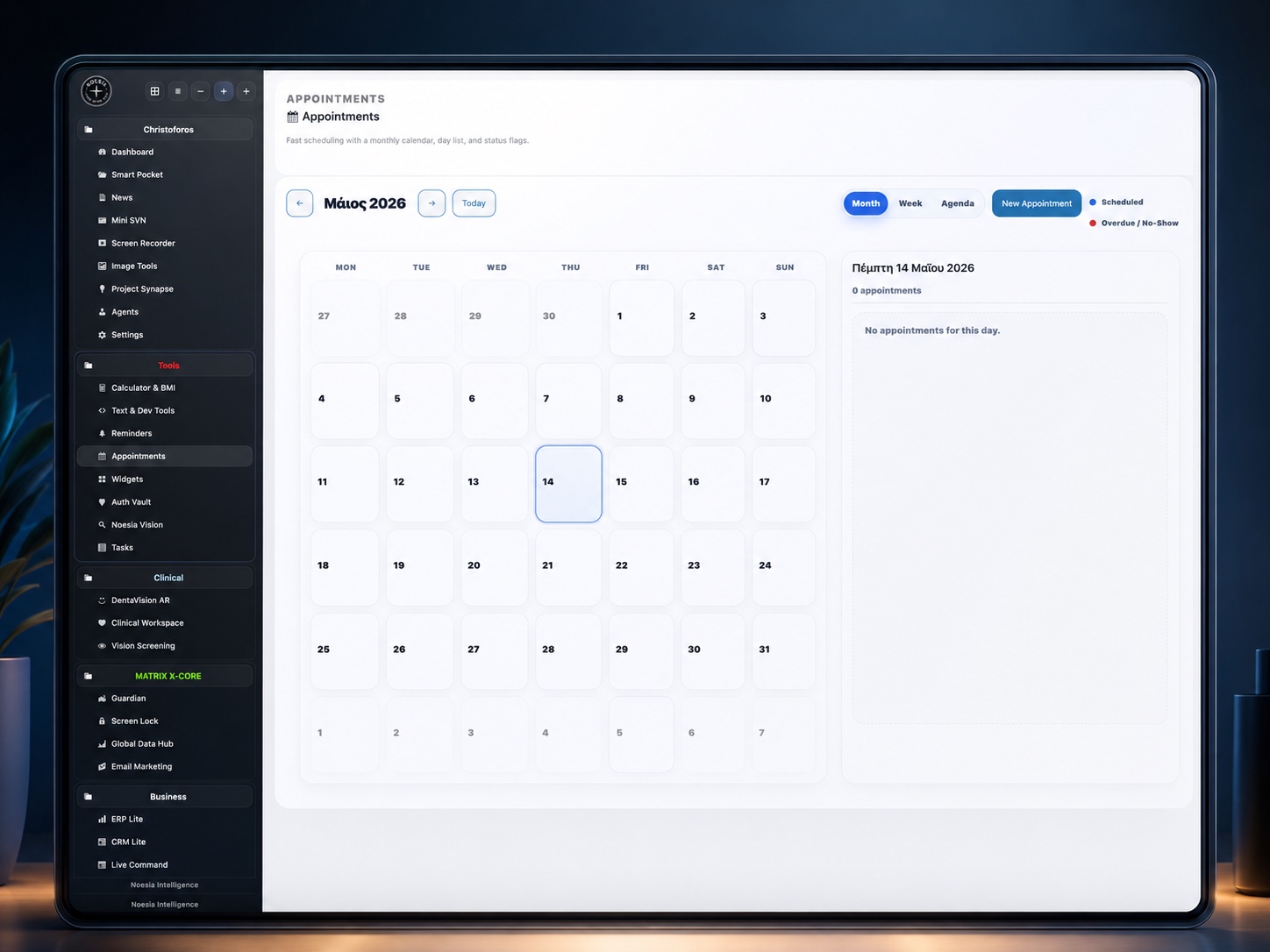
Appointments is the structured scheduling surface of Noesia Smart Waiter. It combines a monthly calendar, week view, agenda list, live day panel, and appointment modal so operators can book, review, update, complete, or delete visits without losing control of guest details, status, or daily flow.
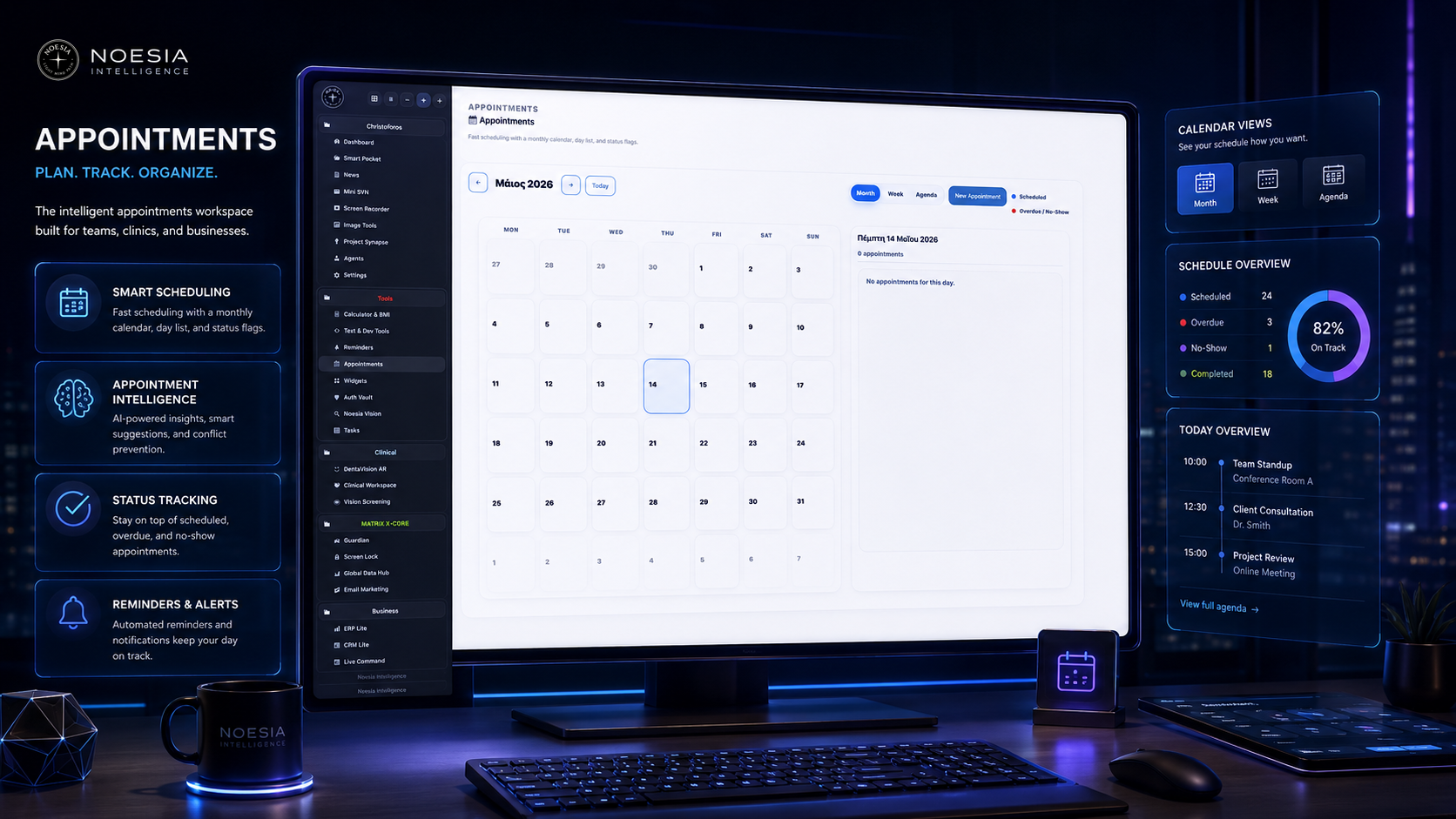
Useful for reservations, table planning, VIP arrivals, guest callbacks, and organizing the daily service rhythm without relying on scattered notes.
Useful when staff need one place to see the month, jump to today, inspect one day in detail, and capture guest information cleanly inside the admin shell.
Useful for reviewing upcoming bookings, spotting no-shows or overdue visits, and keeping the wider platform aware of today’s appointment count.
Premium appointment scheduling with monthly calendar view, day details, status flags, and a clean operating-system experience inside Noesia Matrix OS.
noesia_appointment content layer.Admin path: open the Noesia Smart Waiter admin area and select Appointments from the plugin shell navigation or topbar action.
Tier: this module belongs to the Free tier.
Navigation ownership: the module registers its own admin section, topbar action, local AJAX handlers, and local content owner for appointments.
The module uses backend permissions. Make sure the account opening Appointments can actually manage the Noesia Smart Waiter admin area.
Before adding live data, decide how your team will fill reason, location, covers, and notes so the schedule stays consistent instead of turning into mixed naming styles.
If you plan to use Table / Area for hospitality or reception logistics, keep the naming convention stable from day one so week and agenda screens remain readable.
If the main dashboard should highlight appointments, set the wider shell to use appointments as the emphasized briefing source for today’s count.
Use the month view for broad planning, or move directly to Week or Agenda if the team works better with a tighter operational surface.
Open the appointment modal and start with the required fields first: date, start time, and guest name.
Add status, end time, phone, email, booking purpose, guests / covers, location, and notes so the record is useful later, not just today.
After saving, confirm that the item appears where expected and that the selected day panel reflects the appointment clearly.
When plans change, reopen the item, edit the modal, toggle completion, mark the right status, or delete the entry if the booking should no longer exist.
The top toolbar controls previous / next month movement, Today jump, active view selection, and the New Appointment entry point.
The legend explains the visual meaning of scheduled entries and overdue / no-show emphasis so the user reads the calendar faster.
This is the broadest planning surface, useful for understanding density, day distribution, and where the next busy dates sit in the month.
Useful when the team wants a shorter planning horizon and quicker operational reading than the full monthly grid.
Useful for users who prefer a clean list view of appointments rather than a visual calendar arrangement.
The right-side day panel summarizes the selected day and lists the actual appointments that matter now, making it the practical action area after planning.
The modal is the core data-entry surface. This is where staff create, edit, complete, or delete the actual appointment record.
The form message area reports save errors, validation issues, and backend state, so users should read it before assuming the module failed silently.
Choose the date, open the modal, fill the required fields first, then add covers, location, and notes so the appointment is useful operationally and not just recorded.
Use Today, then read the day panel immediately. This is the fastest way to see who is expected, at what time, and under what status.
Use Month to understand density, Week to tighten focus, and Agenda to execute in list order when the day becomes operationally busy.
Open the appointment, update the status to no-show when appropriate, and keep notes accurate so later reporting and daily decisions remain trustworthy.
Once the booking is served or closed, mark it completed so today and upcoming counts stay meaningful instead of carrying stale items forward.
Issue: the module does not appear in the shell or topbar.
Why it happens: the current account lacks the required capability, a filtered build disabled the module, or the admin shell did not finish loading.
What to do: test with an administrator-level account first, refresh the shell, and confirm the installation is not using a restricted module loader.
Issue: clicking Save does not create the appointment.
Why it happens: one or more required fields are missing, the nonce expired, or the AJAX backend is not responding correctly.
What to do: check the form message area first, confirm date, start time, and guest name are filled, then refresh and try again with a fresh admin session.
Issue: the modal rejects the entry before save.
Why it happens: the module requires at minimum a valid date, a valid start time, and a guest name.
What to do: fill those three first, then add the remaining fields. Also make sure the date is in valid format and the time uses the expected time input.
Issue: the screen loads but does not show expected appointments.
Why it happens: there are no saved entries for the current range, the selected date is outside the visible period, or the current records are cancelled / completed in ways you did not expect.
What to do: jump to Today, inspect the current month, and verify that records actually exist in the range you are viewing.
Issue: the right-side panel shows no appointments for the selected date.
Why it happens: the selected day has no records, the newly created item did not save, or the user is looking at the wrong date after navigation.
What to do: click the exact date again, use Today if needed, and confirm the record saved successfully before assuming rendering failed.
Issue: the delete button does not appear in the modal.
Why it happens: the delete button is hidden for brand-new entries and only appears when editing an existing appointment.
What to do: save the item first, reopen it in edit mode, and the delete action should then be available.
Issue: the dashboard badge or today count feels wrong.
Why it happens: the appointments integration sends today and upcoming counts, but cancelled or completed states affect what should still be considered active.
What to do: verify the statuses of today’s records and then reload the dashboard shell to confirm the refreshed counts.
Issue: some optional fields look different after saving.
Why it happens: the module sanitizes backend values before storage, so malformed input may be normalized or stripped.
What to do: enter clean values, avoid pasting broken formatting, and retest with normal plain-text data.
Issue: the UI exists, but the module reports that the backend is not ready or not connected.
Why it happens: the local AJAX owner did not initialize correctly, the page loaded incompletely, or a custom build broke the local module bootstrap.
What to do: refresh the admin page, check for console or network errors, and confirm the appointment module assets and local AJAX owner are present in the build.
Issue: layout or spacing looks wrong after embedding the snippet.
Why it happens: outside CSS overrides the wrapper or custom selectors were added beyond the namespaced surface.
What to do: keep the snippet self-contained inside the noesia-swa-matrix wrapper and avoid generic selectors that collide with site-wide styles.
Yes. Appointments belongs to the free tier.
Date, start time, and guest name are the minimum required fields for saving an appointment.
Yes. The module is suitable for reservations, visits, bookings, front-desk scheduling, and similar appointment-style flows.
Scheduled, urgent, completed, cancelled, and no-show.
Yes. It includes Month, Week, and Agenda views.
Yes. The toolbar includes a Today action for quick re-centering.
Yes. Phone and email are optional guest fields inside the modal.
Yes. The module includes a Guests / Covers numeric field.
Yes. The modal includes a Table / Area field for operational placement.
Yes. Existing appointments can be reopened and edited from the live interface.
Yes. Delete is available when editing an existing saved appointment.
Yes. Today and upcoming appointment counts can feed the wider shell and dashboard experience.
No. It is hospitality-friendly, but the workflow also fits any business that needs structured appointment control.
Yes, but the schedule becomes more useful operationally when reason, location, covers, and notes are filled consistently.
The Noesia Matrix is the shared architecture language and module fabric behind Noesia Smart Waiter. This module is not just a static page; it sits inside an isolate-first modular system designed for shell-driven navigation, clean section ownership, extensible widget zones, and future-safe expansion.
The architecture direction is intentionally high-control: modular ownership, isolated assets, lazy-ready behavior, clean settings flow, predictable prefixes, maintainable service boundaries, and enterprise-safe discipline around structure, security, and extensibility. Noesia transcends the definition of a standard WordPress plugin, operating as a robust platform built upon enterprise-grade Service-Oriented Design.
Here is how the core engine is designed to minimize bloat, maximize stability, and keep the experience consistently fast and responsive:
Event-Driven Inversion of Control (IoC): The platform follows an IoC pattern via a decoupled Event Bus. The central core acts as a “Logic-Less Host” (Blind / DUMMY Kernel). It does not tightly bind itself to module internals; modules announce their own presence, capabilities, and state through controlled registration flows.
The Micro-Frontend Paradigm (MFE): The UI is not a giant monolithic block. Each application behaves as an independent Micro-Frontend with its own dynamic assets, specialized logic, and UI contracts.
Strict Asset Isolation & Lazy-Loading: Resource usage stays disciplined. A module’s CSS, JavaScript, and data components are loaded only when the user reaches or interacts with that specific application surface.
Decoupled Registry Pattern: The dynamic discovery layer allows applications to be added or removed quickly without rewriting core logic. If one application encounters an issue, the architecture is designed to contain that impact instead of cascading it across the platform.
Enterprise-Grade Security & Stability: The platform is reinforced with strict input sanitization, dynamic registry routing, and defensive safety gates across the stack. The data layer and the user interface remain deliberately separated for maintainability and risk control.
The Result: A scalable hospitality and clinical operating system engineered to manage mission-critical workflows securely — from intimate cafés to high-traffic venues and sensitive medical environments.
When you open a ticket, include one clean screenshot, the exact visible error text, short reproduction steps, and whether the problem is constant or intermittent. That reduces back-and-forth and speeds up resolution.
Open SupportEnter the application layer: Explore the full Noesia Smart Waiter ecosystem and discover how each isolated module helps serve hospitality, operations, business workflows, and the wider mission to reimagine life through smarter software.
Scroll into the Matrix: The catalog below is the live gateway to the platform. Move through Free and Pro environments, open each documentation page, and step directly into the next application surface.